- A course open for editing.
- The SCORM package in .zip format (containing the
imsmanifest.xml).
Steps
Open the course
From Courses, open the course in edit mode.
Add an activity
Click Add an activity, then choose SCORM.
Upload the package
Select the .zip file of the SCORM content.
Save
The module is added to the course; it is tracked (score, completion) according to its manifest.
- SCORM 1.2 and 2004 are supported. For SCORM 2004 with advanced sequencing, enable the SN engine on the course.
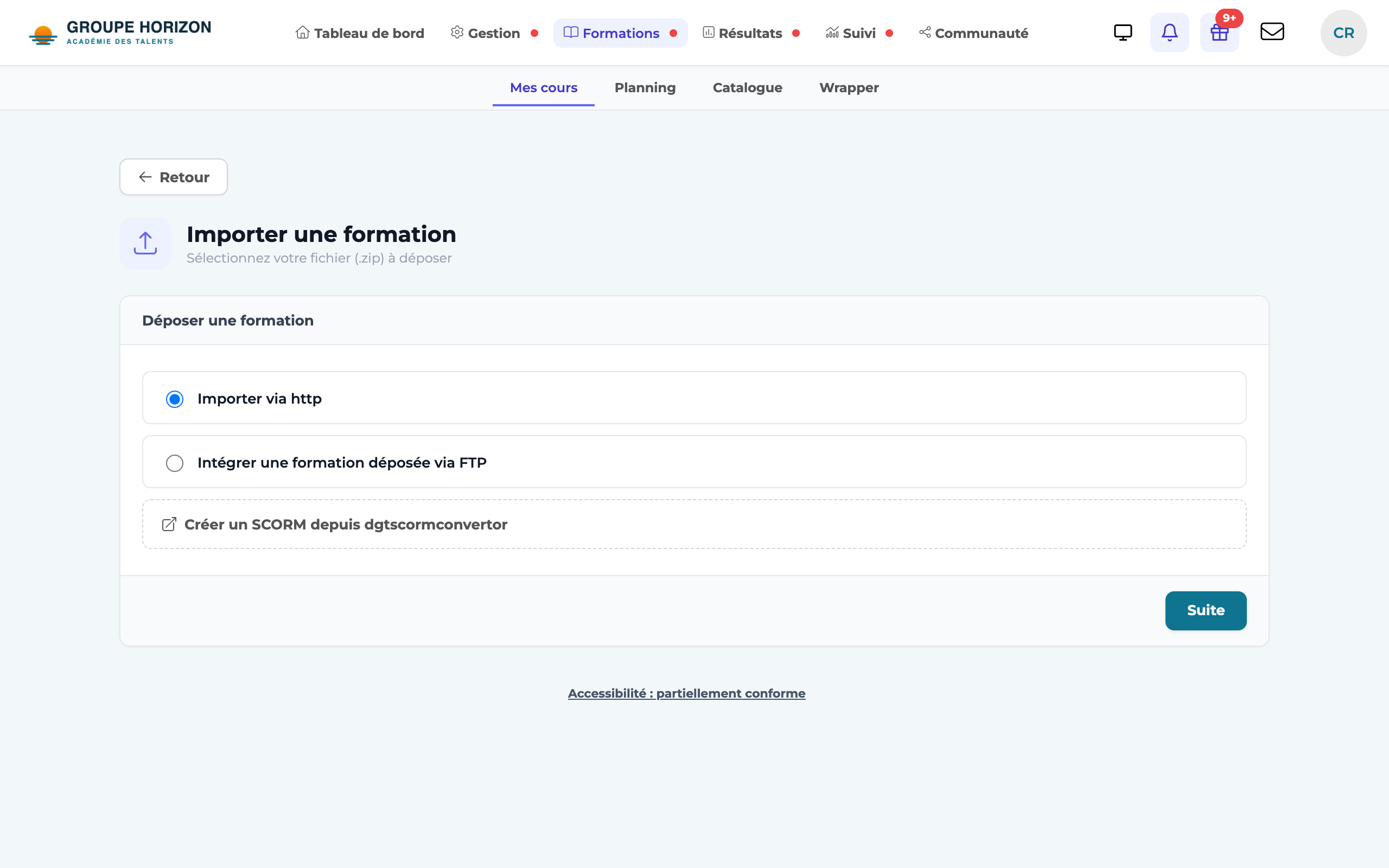
- Several packages at once: "Import through HTTP" accepts a selection of files, up to 10 at once and 1,024 MB in total. The list shows the size of each one and the total, the files are uploaded one by one with a progress bar, then each package becomes an activity (xAPI packages are recognised).
- To update an existing SCORM package without losing progress, use Replace the SCORM package (see Update a SCORM module).
- The dgtTutor companion can draw on the SCORM content (RAG indexing) — see the AI category.