- A course open for editing.
Steps
Add an activity
In the course being edited, click Add an activity.
Choose the type
Video (WebTV), Document or External link.
Fill in the content
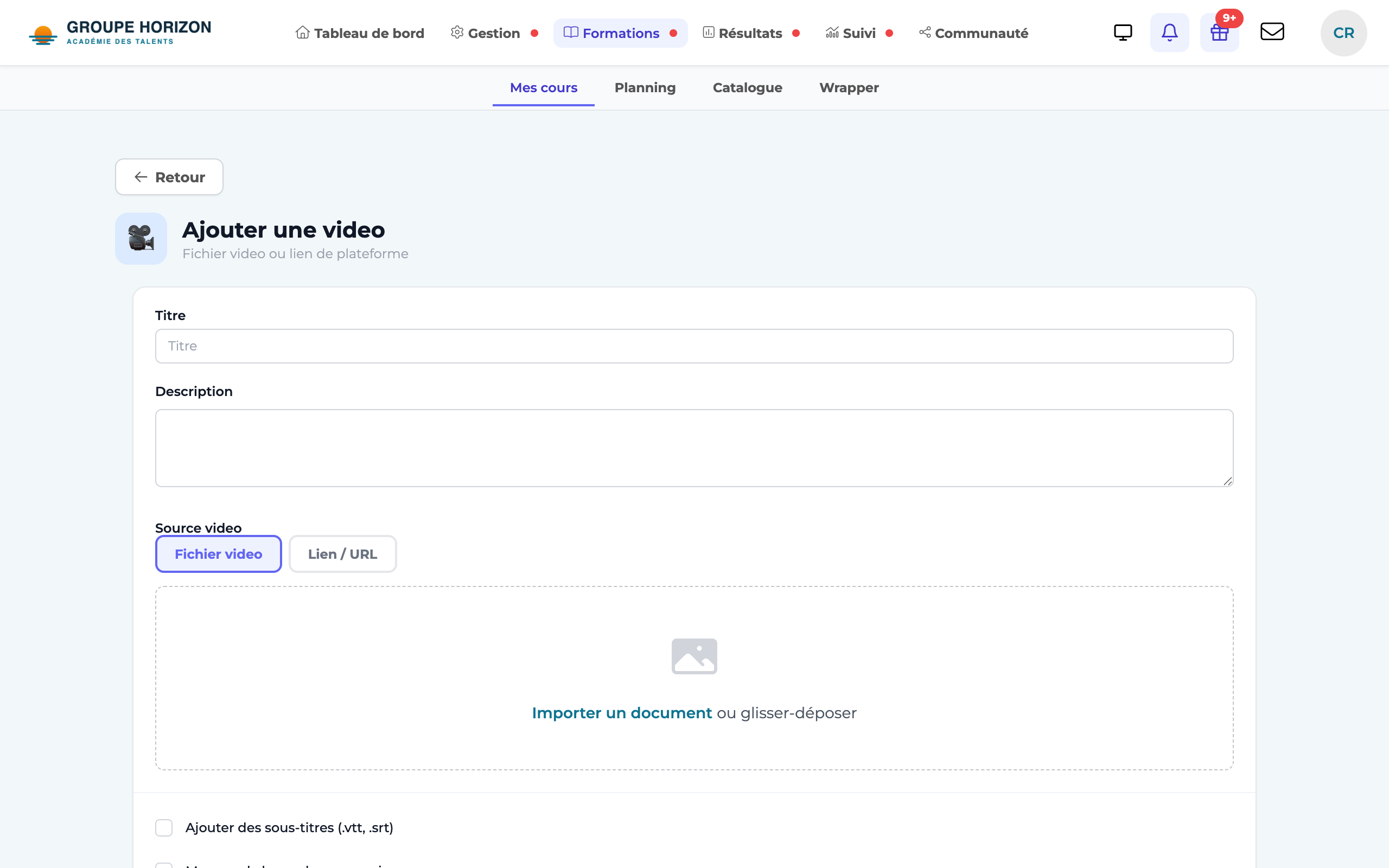
Video: import an MP4 or paste a URL (YouTube, Vimeo, other). Document: upload the file (PDF…). Link: paste the URL of the external content.
Add subtitles (video)
Tick "Add subtitles (.vtt, .srt)" and import the subtitle file.
Set the tracking
Viewing, completion or submission, depending on the type of activity. For a document, choose whether the activity is only passed once all pages have been viewed (box ticked by default) and whether downloading is not allowed, allowed after reading all pages or allowed.
Save
The activity appears in the course.
Reading a PDF
- PDFs, and Office documents (Word, PowerPoint, Excel) automatically converted to PDF, are displayed in a viewer where all pages scroll continuously, including landscape slideshows from PowerPoint: no more need for the keyboard arrows. The viewer also shows the current page and offers zoom and full screen.
- With validation on the last page, progress follows the pages viewed: 8 pages out of 10 = 80%. Viewed pages are remembered: a learner who comes back picks up where they left off, and the activity is passed on the last page viewed.
- Downloading "after reading" is controlled by the server, and the file is no longer served at a public address. A PDF displayed on screen is nevertheless sent to the browser: this protection makes copying difficult, not impossible.
- Video (WebTV) accepts both a hosted MP4 file and a remote video (YouTube, Vimeo…) via its URL.
- You can also add audio (podcast) — a local file or a remote URL — and a document submission (file upload by the learner).
- PDFs can be used by dgtTutor (RAG); videos can be too, via their subtitles (.srt / .vtt).