Two ways to create
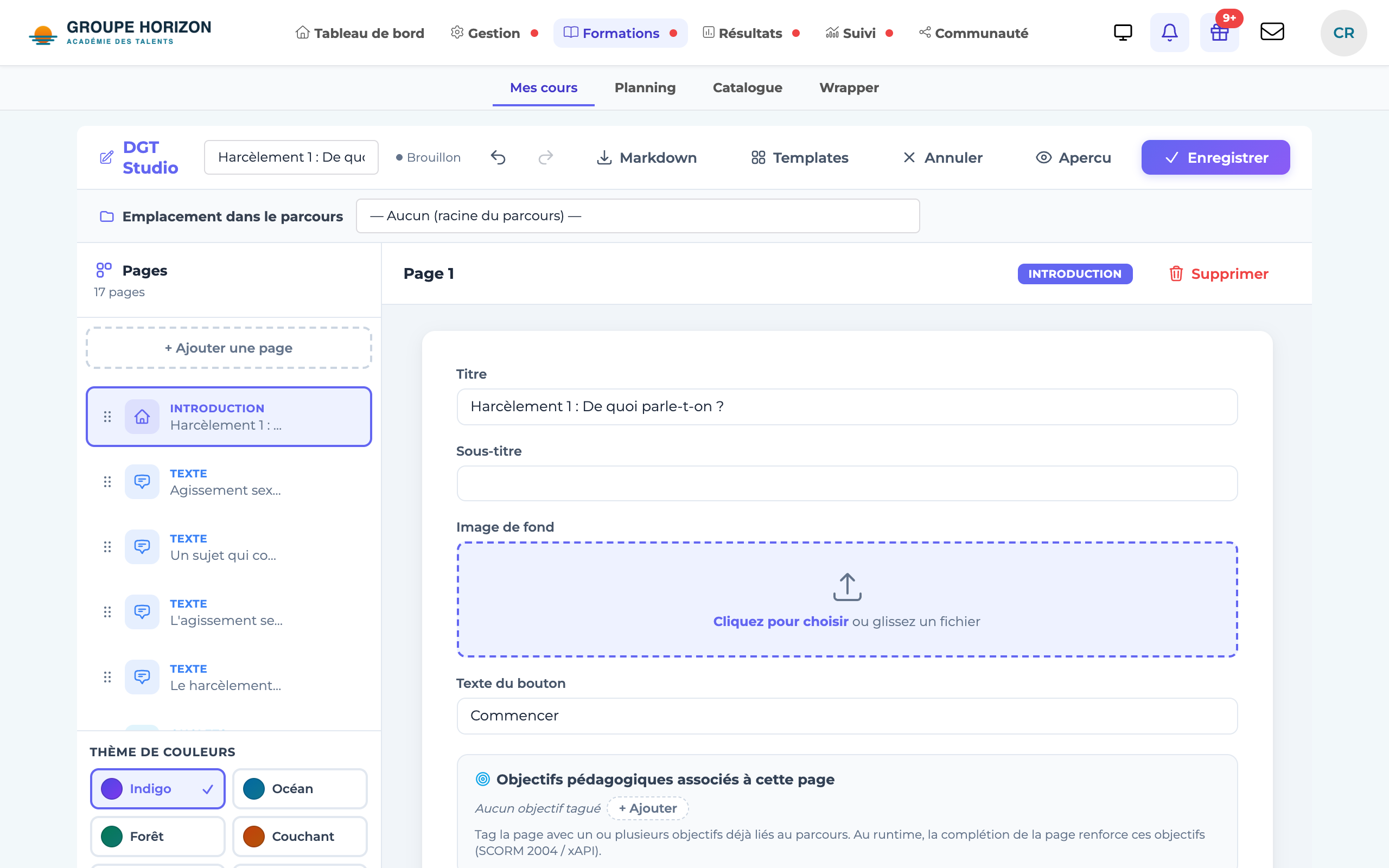
- Studio Creator — an editor for building screens (text, media, interactions), starting from a blank page. The range of screens is wide: rich text, media, text + media (text and an image, audio or video side by side, see below), document, quote, tabs, accordion, callout boxes (info / tip / warning / key point), flip cards, timeline (a horizontal axis of dates: the learner clicks a date to read the event), numbered steps, annotated image, before / after (image comparison slider, with automatically aligned framing), key figures (animated, coloured counters, shown as cards, donuts or a bar chart; donuts and bars are proportional to a reference value: 100 when all the figures are percentages, otherwise the largest figure, or the value you specify), checklist, built-in quiz, interactive video (the video stops to ask questions, see Create an interactive video in DGT Studio), and AI activities: open question graded by AI (mark + formative feedback) and AI role-play (a dialogue with a character played by the AI, followed by an assessment). Screens (tabs, steps, AI activities…) are shown in white cards with rounded corners for a polished look. The content of tabs, steps and accordions is written with the full rich-text editor (as on the Text page): formatting, links, images, videos, audio, documents and tables.
- Studio Recorder — import a PowerPoint (PPTX) and narrate each slide (voice, and optionally the screen), then export it as a module.
Text + media screen
The Text + media screen places rich text next to an image, a sound or a video (file, webcam or microphone recording, or a YouTube, Vimeo… link). The type of media is detected automatically.
Add the screen
Add a page, then Text + media.
Choose the layout
click Media on the left or Media on the right.
Choose the media size
One third, Half or Two thirds of the width; the text takes the rest.
Write the text
Edit with the rich text editor, as for a Text screen.
Add the media
drop the file, record yourself, or paste a link; add a caption if needed and, for an image, its description (read by screen readers).
On a phone, the media automatically moves above the text. The text, caption and description are translated with the rest of the module, and the screen is exported to SCORM like the others.
Create with Studio Recorder
Add the activity
In the course being edited: Add an activity → DGT Studio Recorder.
Import your PPTX
The slideshow is converted into slides.
Narrate
Record your voice for each slide (and the cursor / screen if needed).
Save as a module
The result is added to the course and tracked (progress).
Questionnaires in DGT Studio
DGT Studio lets you insert questions into a module. One particular feature: the questions in a Studio module are all displayed on the same page. This is the difference from the native Questionnaire activity, which shows one question per page.
- Choose DGT Studio to include a few questions along the way in your content, on a single screen.
- Choose the Questionnaire activity for a test that moves on question by question.
Require validation before continuing
By default, the learner can move to the next screen without answering. To prevent this, tick Validate before continuing in the quiz screen settings (next to Show corrections):
The Next button stays greyed out, and the message "Validate your answers to move on" is shown below the quiz.
The learner clicks Validate my answers: the corrections, feedback and score are displayed.
The Next button becomes active again.
If they come back later to a quiz they have already validated, the learner is no longer blocked.
With Show corrections, a wrong answer displays the correct answer below the question: the expected value, the correct order of the steps, the right matches or the complete sentence of a fill-in-the-blanks text.
Collect opinions: survey questions
Tick Survey (not scored) on a single-choice, multiple-choice or true/false question: it no longer has a right answer, does not count towards the score and is used to collect learners' opinions. The answers are read on the course's Survey results screen (see Survey questions: collect opinions and read the results).
Add narration to a page
Each page can have an audio narration (uploaded file or recorded with the microphone) with captions the learner turns on in one click and a transcript. See Add narration to a DGT Studio page (audio and captions).
Offer the module in other languages
A module is translated without being duplicated: AI translates the texts, you review, you publish, and each learner sees it in their language. See Translate a course and its modules.
Start from a template
In the editor, the 📚 Template library button offers ready-made modules (onboarding, compliance, cybersecurity, management, platform tour…) that you can load as they are or insert into the current module. A "Demo of all activities" template (🎬 Demo category) presents all the screen types and all the questions available: it is the quickest way to discover what Studio can do, then adapt the content.
Start from Markdown text
The editor's Markdown button converts Markdown text into Studio screens. Beyond text, it creates dedicated screens: an image on its own  becomes a media screen; a callout > [!TIP] (or [!NOTE], [!WARNING], [!IMPORTANT]) becomes a coloured callout box; a task list - [ ] … becomes a checklist; a quote > … followed by — Author fills in the author. Each ## level heading starts a new page. Tables, code blocks and formatting (bold, italics, links, lists) are kept. Pages you have already created are not overwritten: the imported pages are added after them.
Interactive screens and quizzes are written as blocks ::: type … ::: (::: cartes, ::: onglets, ::: etapes, ::: frise, ::: quiz…). The ::: chiffres donuts or ::: chiffres histogramme block chooses how the key figures are presented. The ::: texte-media <url> droite 1/3 block creates a Text + media screen: the block's text is shown next to the image, video or sound; gauche (left) or droite (right) places the media, 1/3, 1/2 or 2/3 sets its width, and the légende : and description : lines fill in the caption and the alternative text. In a ::: quiz block, the line bloquer: oui turns on the Validate before continuing option.
Have an AI write the module
The import window offers Copy the template for AI (or Download (.md)): complete instructions, with the full syntax and an example. Paste them into your AI (ChatGPT, Claude, Mistral…) with your topic, then paste its answer into the import window: the screens and quizzes are created in one go, ready for you to review.
Place the module in a chapter
In the editor, the Location bar, always visible at the top, holds the Parent chapter selector: it lets you choose which chapter to place the module in (or "root" to leave it outside any chapter). The current location is preselected when editing — so you can move the module from one chapter to another directly from Studio, without going through the course tree.
- Studio Creator is suited to freely assembling screens and interactions.
- AI can also save you time: converting a PDF into a structured module (see the AI category).
- Questions created in Studio and in the native Questionnaire share the same question bank (they can be reused).