How it works
A course is translated without being duplicated: each module keeps a single structure (its pages, its questions, its tracking) and gets one version per language for its texts. A learner whose default language is English sees the English version as soon as it is published; everyone else keeps seeing the module in French.
What can be translated:
- DGT Studio modules — every text on the screens and in the quizzes, including the captions of an audio narration;
- quizzes built with the quiz editor;
- the course title, description and activity names;
- the course topics.
The player's buttons, instructions and messages ("Next", "Submit my answers"…) automatically follow the module's language.
- The course must contain at least one DGT Studio module or one quiz: this is what makes the Translations button appear.
- Automatic translation uses the platform's AI module and consumes AI credits. Without the AI module, you can still translate by hand on the same screen.
- The target language must be active on the platform (see Manage languages). English is always offered.
Steps
Open the screen
Edit the course, go to the Content tab, then click Translations. The screen opens in a window over the course.
Choose the language
Language selector at the top of the screen.
Translate the labels
The Title, description and activity names block also lists the course topics. Click Translate missing labels, or type them yourself. These labels are shown as soon as they are saved, without publishing.
Translate the modules
Translate all modules translates the whole course. A panel shows the progress (current module, percentage, elapsed time): keep the window open until the end. For a single module, click Open on its row, then Translate automatically.
Review
In a module, each text appears next to the original. Correct it directly: changes are saved automatically. Tick Page reviewed as you go; the counter shows how many pages are left to review.
Preview
Preview opens the module as a learner will see it in that language.
Publish
Publish makes the translation visible to learners. Unpublish hides it again, without deleting anything.
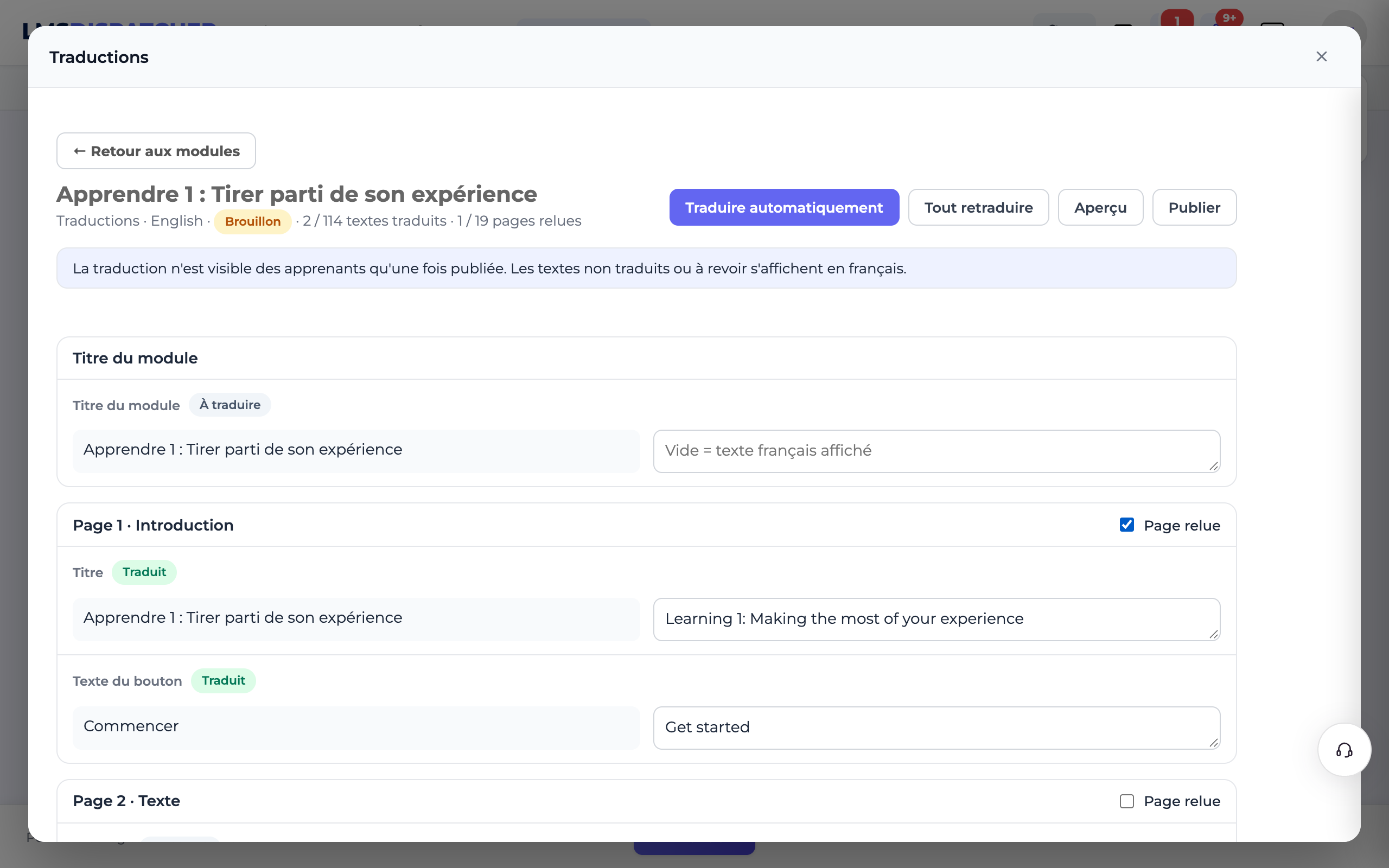
The states of a text
| State | What the learner sees |
|---|---|
| Translated | The translated text |
| To translate | The French text |
| To review | The French text: the original has changed since it was translated |
A field left empty shows the French text. When you edit a module in French after translating it, only the pages you changed switch to To review: the rest of the translation is kept.
Replace a file for one language
A PDF sheet, an image or an audio file can have its own version in a language: on the file field, click Replace for this language, then upload the translated version. Use the source file brings back the French file. Without a replacement, the language uses the same file as French.
Narration captions in a language
By default, translated captions keep the timings of the French audio: that is perfect as long as the language uses the same audio. If you have uploaded audio recorded in the language, its pace is different: the narrated page's "Subtitles in this language" block then offers:
- Import subtitles (.vtt, .srt) — the language's own file, with its own split and timings (for example supplied with the recording).
- Fit to this language's audio — the translated captions are spread over the length of the language's audio, in proportion to their length. Replace the narration audio for this language first.
- Use the translated subtitles — drops the language's track; the translations you entered are kept.
Once the track is in place, the page shows "Language-specific" and the captions are no longer translated one by one. If the French captions change later, a warning asks you to check the language's ones: they keep playing with the language's audio.
What the learner sees
- Their default language (the one in their profile) decides which version is played: the published version in their language, otherwise French.
- The title and the activity names appear in their language in the course list and the table of contents, and search finds them under their translated name.
- Their progress is shared across languages: switching language does not restart the module.
- AI translations are checked before being saved (tags, variables such as
{{learner.firstname}}, the blanks of fill-in-the-blanks texts): a rejected text stays "to translate" and is flagged to you. - Retranslate everything translates a module again and overwrites the texts already translated, including your corrections: keep it for a complete overhaul of the module.
- Older quizzes (created before the current quiz editor format) cannot be translated; other activities (SCORM, videos…) keep their own language handling.
- A module exported as SCORM or delivered through the Wrapper plays in the learner's language in the partner LMS, when that LMS passes it on.
- Translating is not always localising: a course on French law or on the French language needs adapting, not just translating.