How it works
Every page of a DGT Studio module — text, tabs, quiz, timeline… — can have its own narration: an audio file played on the page, with captions. Captions serve twice: shown while listening (CC button), and gathered into a full transcript, essential for deaf and hard-of-hearing learners.
Steps
Open the panel
In the DGT Studio editor, select the page, then expand Audio narration and captions, below the page content.
Add the audio
Upload an audio file (MP3, M4A, OGG, WAV), or Record with microphone straight from the browser.
Create the captions
Three ways, which can be combined:
- Create from the script: paste the text you read, then Spread over the duration. The text is split into sentences spread over the length of the audio;
- Import .vtt / .srt: reuse an existing subtitle file;
- Add a caption: type one line at a time, with its start and end.
Fine-tune the timings
Play the audio in the panel. A line's stopwatch button sets its start to the playback position (and the end of the previous line); its play button plays that line alone.
Set playback
Tick Start playing when the page opens and Listen to the end before moving to the next page if needed.
Save the module.
What the learner sees
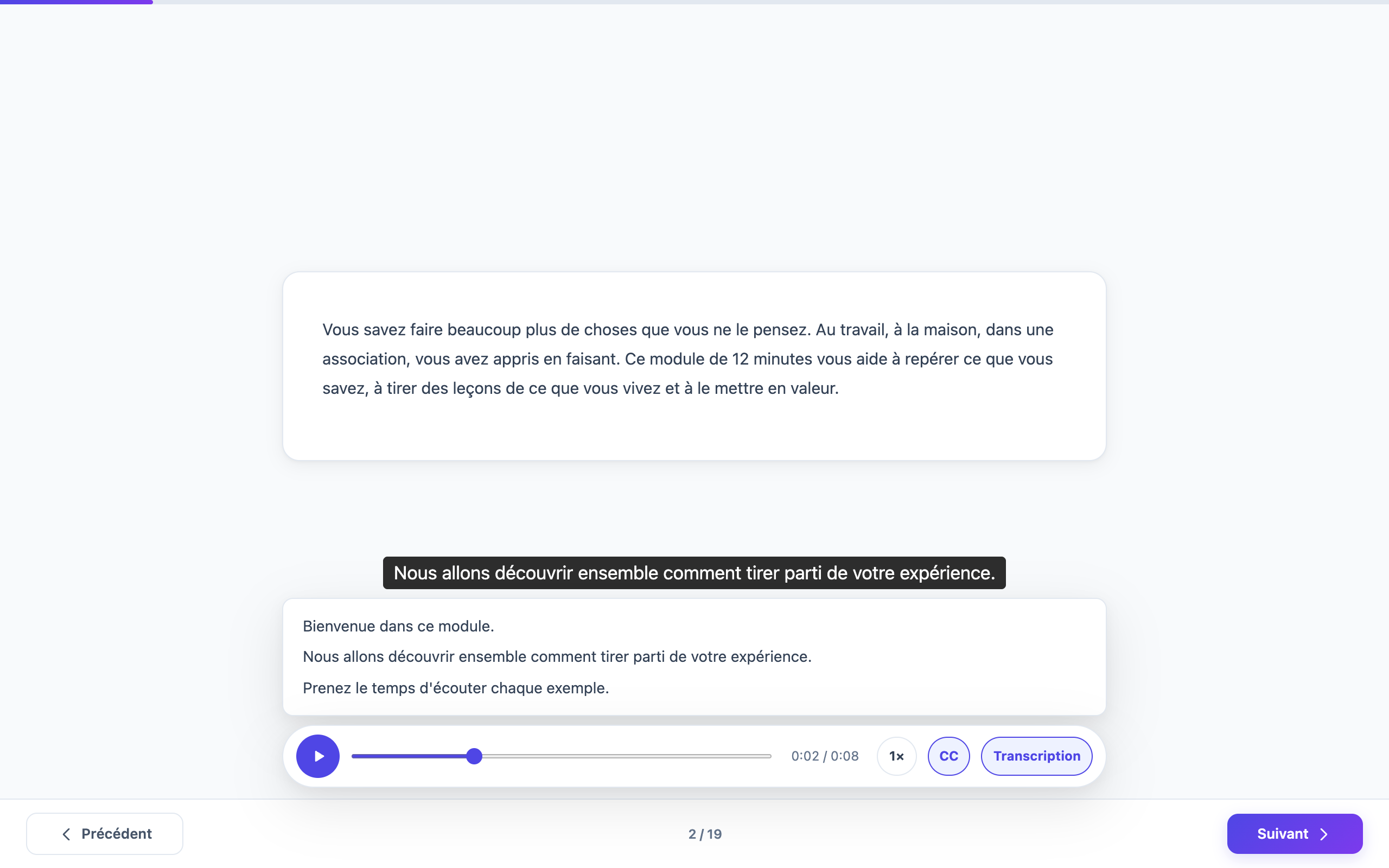
A narration bar, fixed at the bottom of the screen above the Previous / Next buttons:
- play / pause and position in the audio;
- playback speed (1×, 1.25×, 1.5×, 0.75×);
- CC to show the captions, white on black — their choice is remembered from one page to the next;
- Transcript to read the whole text at once.
The sound stops when they change page. If you required listening to the end, the Next button stays greyed out until the audio ends; a page already passed does not lock again.
- Autoplay: browsers only start a sound after a first click in the module. When the browser refuses to start on its own, the play button pulses to invite the learner to start listening.
- An audio file that is missing or unreadable never blocks the learner, even when listening is required.
- Download .vtt exports the page's captions, for example to have them proofread.
- When saving, the module is refused if a caption ends before it starts: the page and line concerned are indicated.
- Translations: the caption text is translated with the rest of the module, and the audio can be replaced by a version recorded in the language. By default, translated captions keep the timings of the French audio; with a voice recorded in the language, import its own captions or fit them to its length (see Translate a course and its modules).
- The narration follows the module in SCORM export and the Wrapper, with no setting.