How it works
DGTLMS adapts to your brand guidelines: a logo, a main colour and a font are enough to transform the interface. The settings are made per space (site), so different clients can have different brands.
Steps
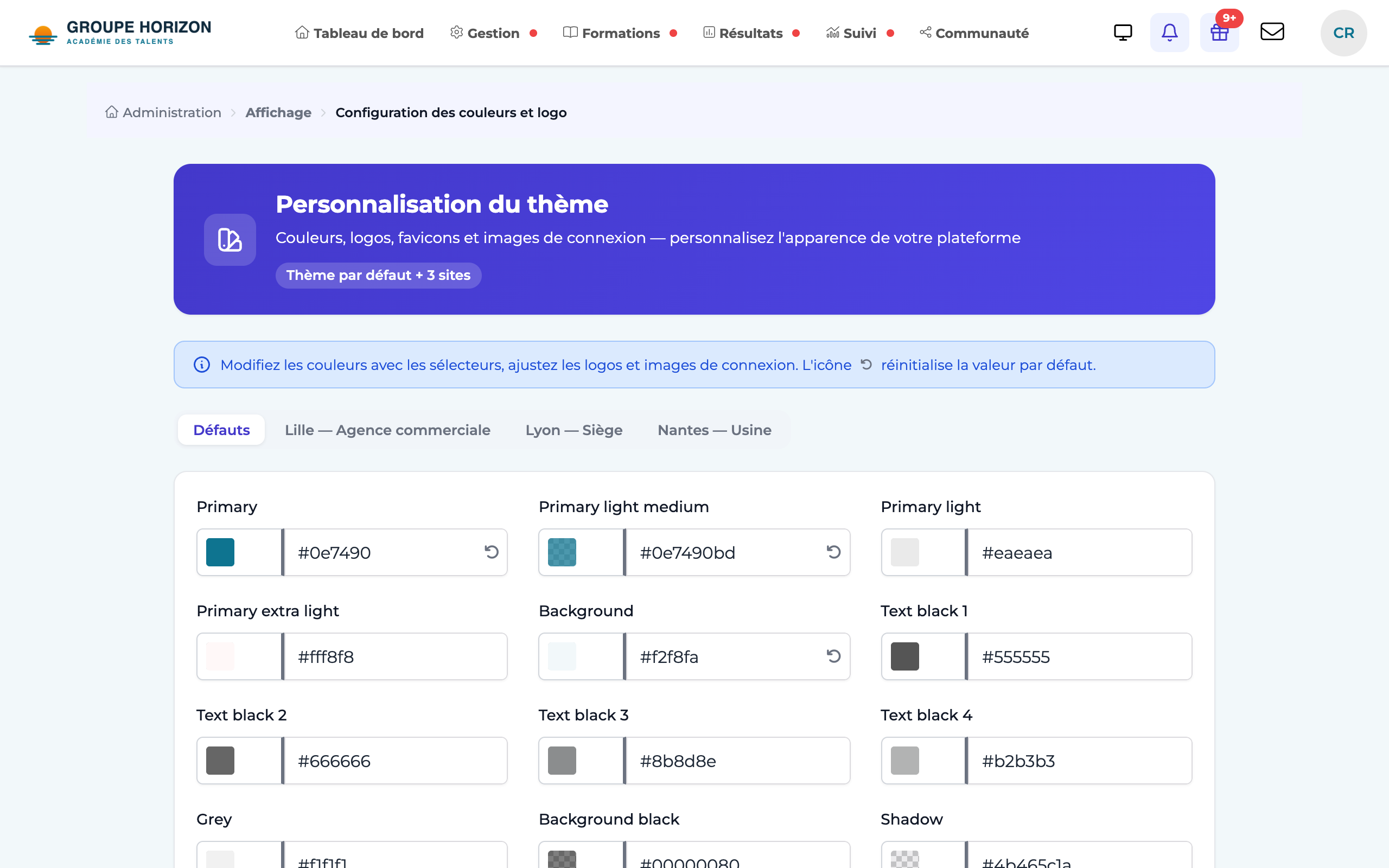
Open the customisation settings
Administration → Personnalisation(customisation).Upload the logos
A logo for the light theme and, ideally, a variant for the dark theme, plus a favicon.
Choose the main colour
It drives buttons, links and accents through the
--primarytoken.Set the font
Select the typeface for headings and body text.
Customise the footer
Legal notices, legal links, contact.
Save
The new look applies immediately to the space.
Menu at the top or on the left
By default, the sections (Dashboard, Management, Courses…) are displayed at the top of the screen. To place them in a column on the left: Administration → Display configuration → General settings → Navigation menu position, choose On the left, then Confirm. This setting is the platform's default position: each user can change it for themselves from their profile menu (Show the menu on the left or Show the menu at the top). Their choice follows them from one device to another; if they go back to the platform's position, they will follow its changes again.
- The open section expands its sub-menus (My courses, Planning, Catalog…) just below it.
- Administration is at the bottom of the column (and always in your profile menu), for accounts that have access to it.
- The Collapse menu button, at the bottom of the column, keeps only the icons, and the logo is replaced by your space's favicon: each section's name appears on hover and the sub-menus move back to the top of the content. Each user makes this choice for themselves, in their own browser.
- On a tablet in portrait mode and on mobile, the menu remains the usual drop-down menu (☰).
- Provide a logo that is legible on a light background and on a dark background: both themes coexist.
- The favicon is the small icon shown in the browser tab. Upload an ICO file or a square image (PNG recommended, from 32×32 to 512×512 pixels). Without its own favicon, a site uses the default theme's, then DGTLMS's. If the old icon is still displayed, reload the page: the browser keeps it in memory.
- Accepted formats for the logo, the dark theme logo and the login image: PNG, JPEG, GIF and, on a platform running PHP 8, WebP. A WebP file is converted to PNG on upload (transparency preserved) so that it displays correctly in certificates and PDF documents.
- By default, the theme follows each user's system setting (light or dark). Everyone can change it with the theme button in the header, which cycles from automatic to light, then dark, then back to automatic.
- The main colour must keep sufficient contrast (RGAA accessibility) with the text and background.
- Customisation is per space: each client can have its own visual identity.