How it works
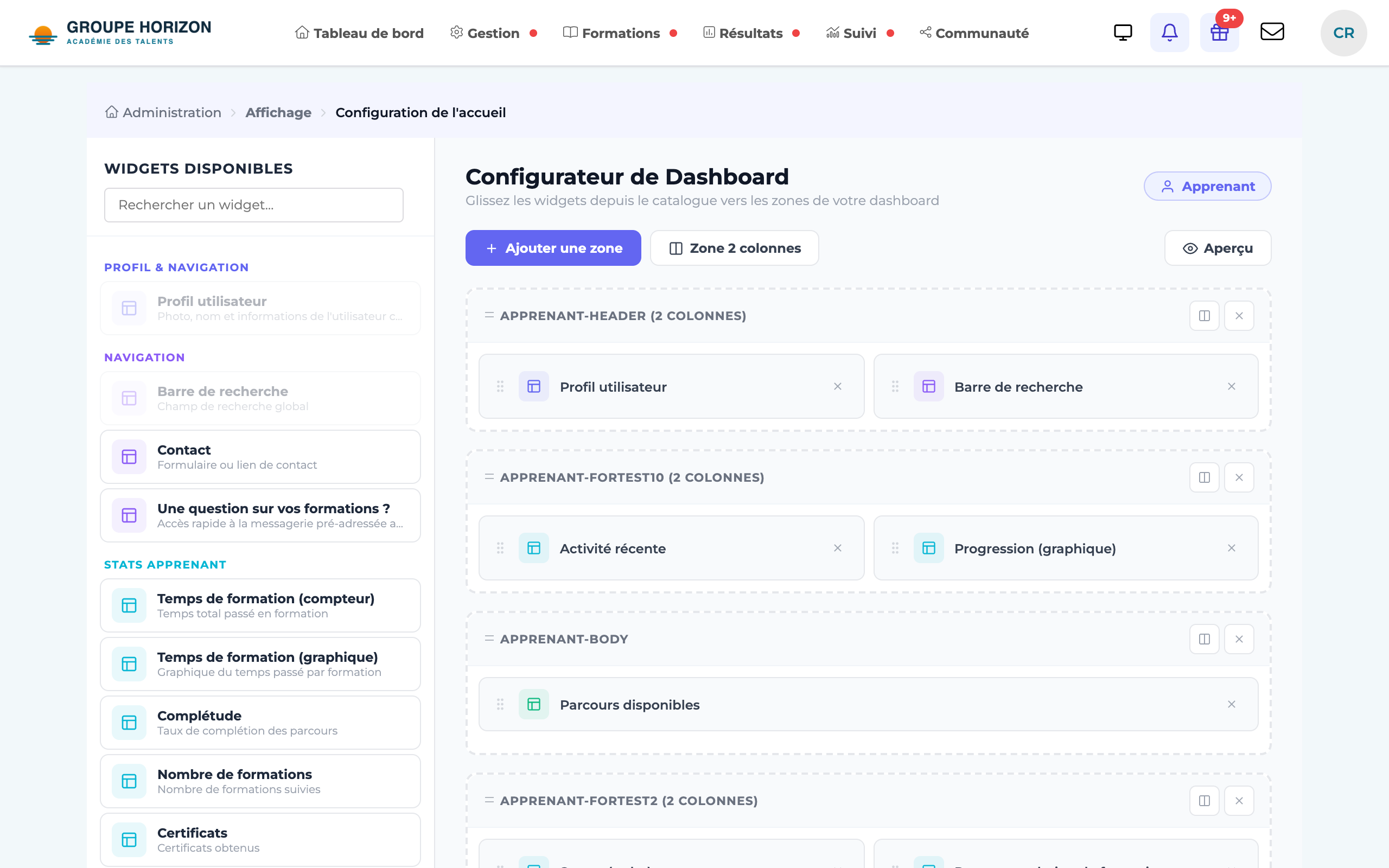
The home dashboard is modular: it is made up of widgets (courses in progress, results, deadlines, community, certificates…) arranged in zones of one or two columns. The builder lets you choose which ones to display and in what order, for each profile and, if needed, for each site.
- Think about the profile you are targeting: a learner, an instructor and an administrator do not have the same needs.
- Each profile starts from a home template:
dgtlms_administrateurs,dgtlms_formateursordgtlms_apprenants(ready-made layouts), ordynamicfor a layout you build entirely yourself.
Steps
Open the configuration
Administration → Display → Home page configuration. A table lists the profiles (Administrator, Instructor, Learner and your custom profiles), outside any site and then site by site.Choose the template
For each profile, select the home template in the list, then confirm.
Open the builder
Click the edit button (« Modifier les widgets ») of the profile you want.
Discover a widget
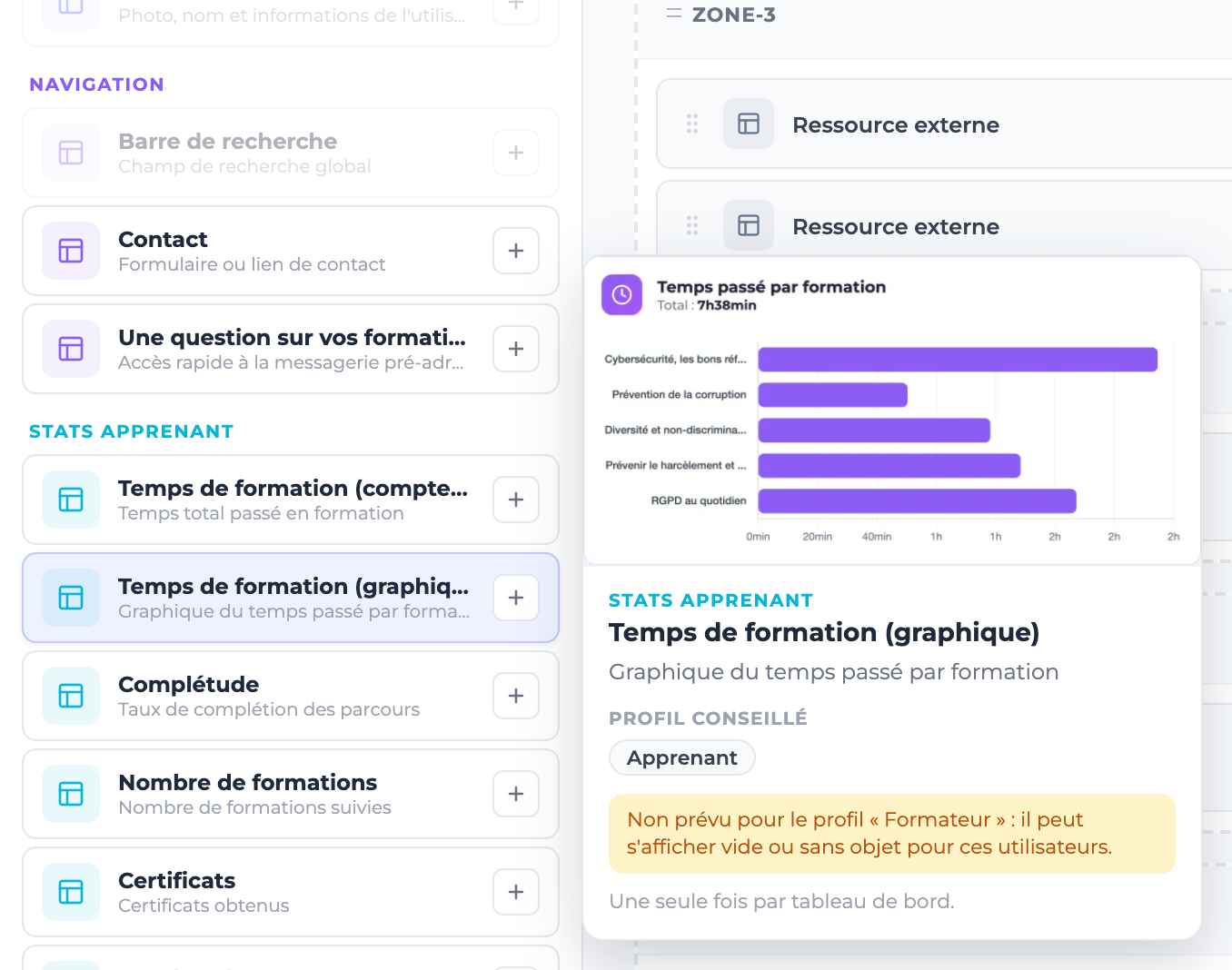
Hover over a widget in the left-hand catalogue: a preview shows its screenshot, its full description and the recommended profile (Learner, Instructor, Administrator or all profiles).
Add widgets
Drag the widget from the catalogue to the exact spot you want in a zone: it lands where you drop it. You can also click + (or double-click): it is added at the end of the last zone and the page scrolls to it.
Organise the zones
Add a zone (one or two columns), then drag a widget from one zone to another, or drag a zone by its header to change the order. A zone's columns button switches it between one and two columns.
Remove
A widget's cross removes it from the zone; the cross in a zone header deletes the whole zone.
Save
Save the layout. It applies to all users with that profile (on the site concerned).
- A clean dashboard (3 to 6 useful widgets) is better than a wall of information.
- If a widget is not designed for the profile you are configuring, the preview warns you: it may appear empty or irrelevant to those users.
- Some widgets can be placed only once per dashboard (profile, search bar…): once placed, they are greyed out in the catalogue.
- The widget search field filters the catalogue by name and description.
- Widgets are fed by real data: the more the platform is used, the more relevant they become.