Steps
Open the results
Go to the Results menu.
Filter
Narrow down by session, group, course or period.
Read the table
Status (passed, in progress, failed, not started), score, progress, time spent and dates.
View the details
Click a learner for the details of their results, down to their answers (by course and by activity).
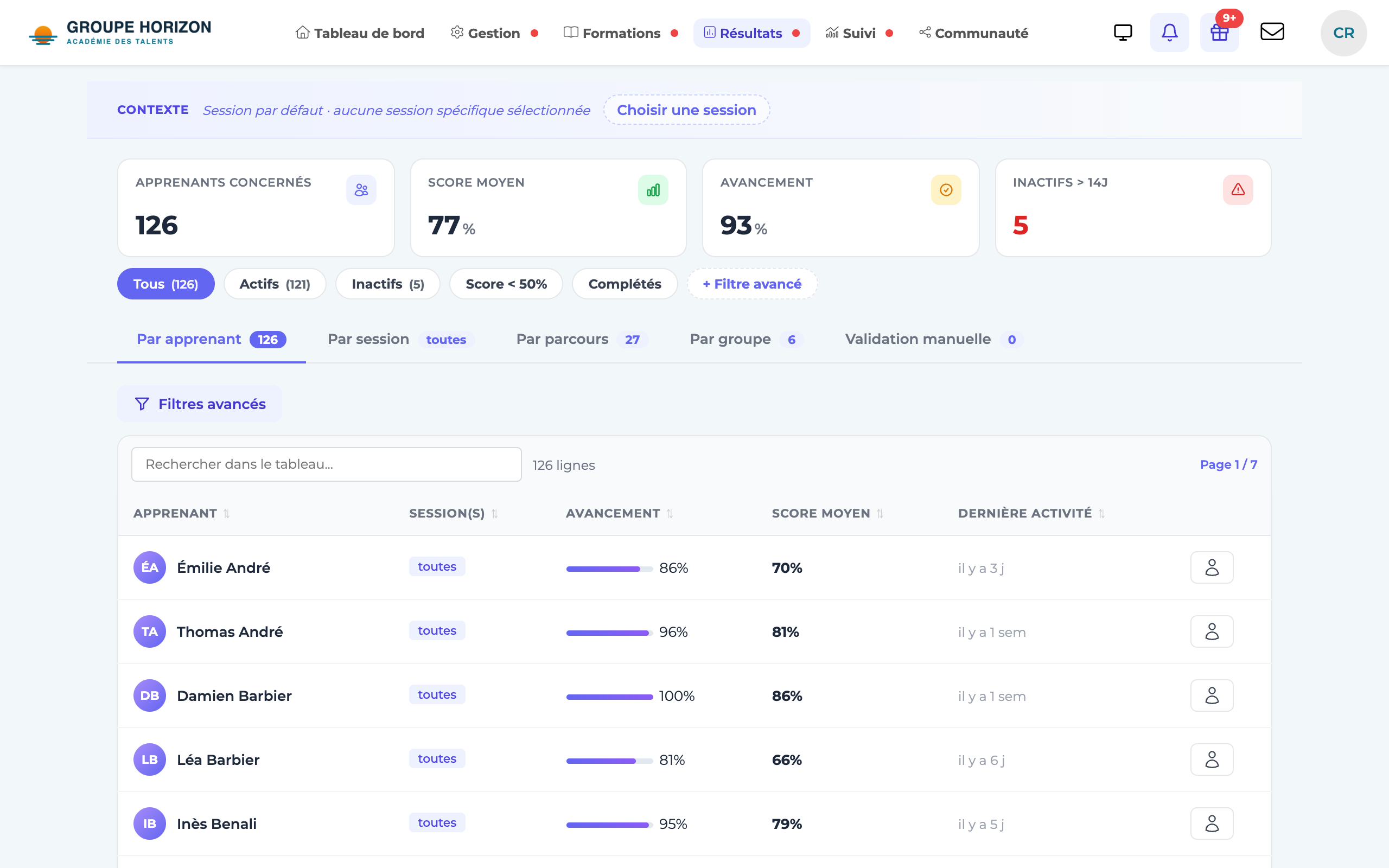
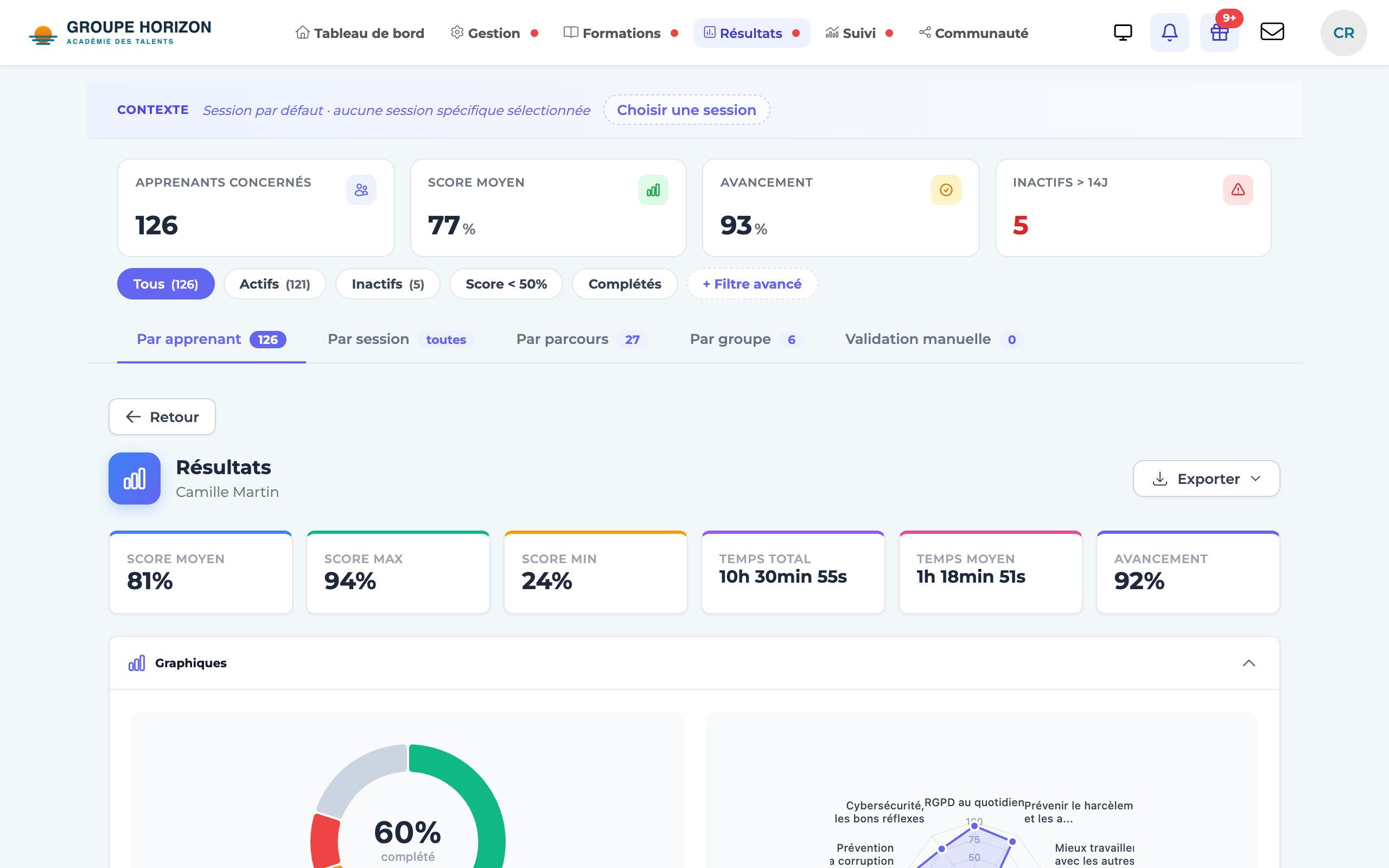
View all of a learner's sessions
By default, a learner's page follows the Context chosen at the top of the page: if a session is selected there, only the courses in that session are displayed. A learner who is not part of it, or whose session is disabled, then appears with zero results.
To see all their results without changing the context, an administrator enables the option in Administration → Configuration (Management section): "Results: a learner's page lists all their sessions and courses (active or not), whatever the context".
Once the option is enabled, a learner's page shows, as it does for a group delegate:
- cumulative indicators: progress, total time, courses completed, passed, in progress and not started;
- one block per session, with its courses, its charts and its Export menu (attendance sheet, certificate);
- a Courses outside sessions block for courses assigned directly.
Completed, disabled and upcoming sessions are also included, flagged with a badge. Everyone only sees the sessions they have access to: a site administrator sees those of their site, an instructor their own.
- Results are also reported at activity level (Learning Unit).
- Export the table to CSV for external processing (see the dedicated article).