How it works
The course player offers a notepad: one note per activity, written while following the content. The note is saved automatically as you type, whatever the type of activity (SCORM module, quiz, video, document, DGT Studio…). All notes are then gathered on the My notes page, where they can be searched and exported.
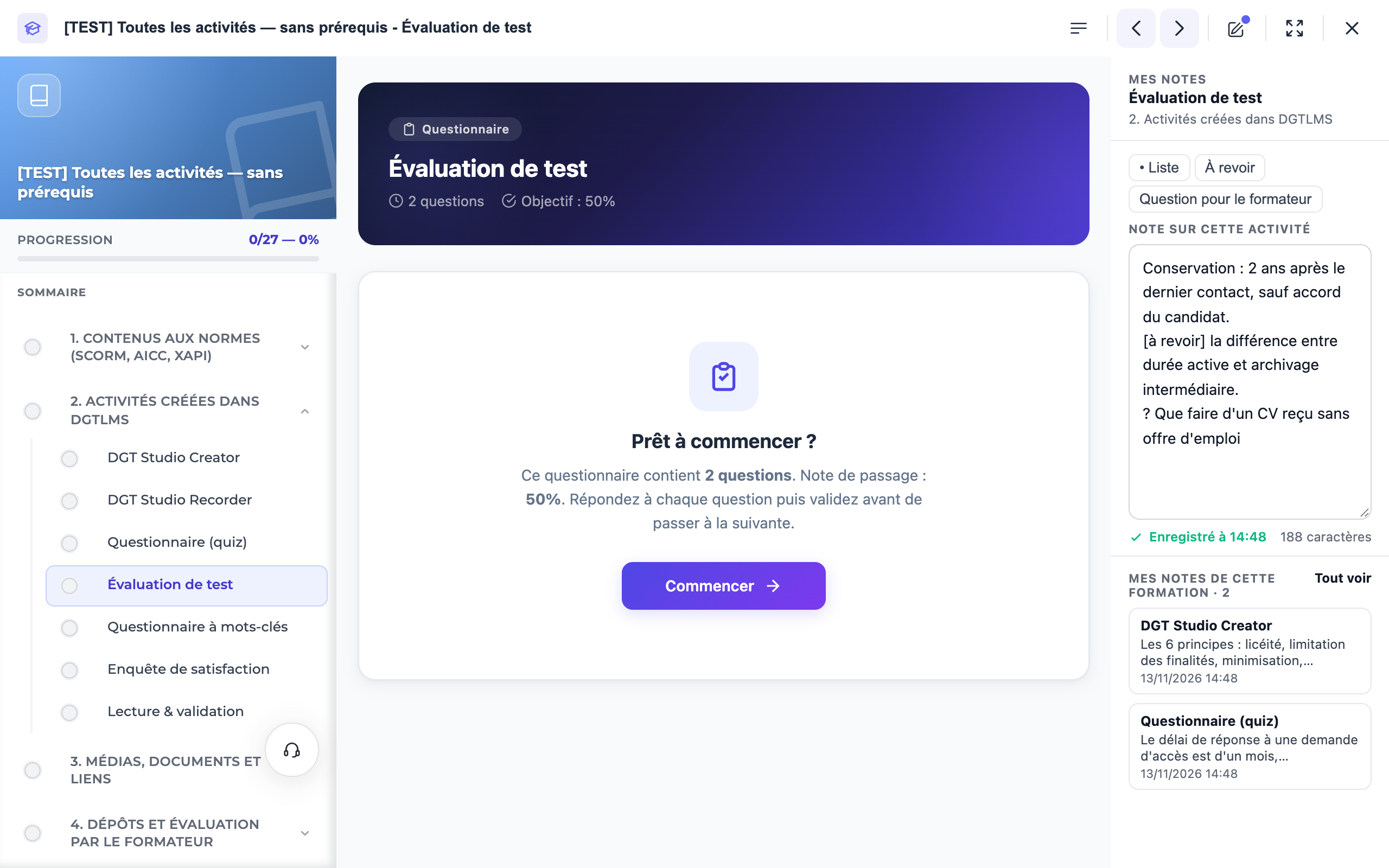
Taking a note in the player
Open the notepad
In the player bar, click the pencil icon ("Notepad"). The panel opens on the right, with the title of the activity and its chapter.
Write
Type your note in the text area. Three shortcuts add a ready-made line: • List, To review (inserts "[to review]") and Question for the trainer (inserts "?").
Let it save
Below the area, the status changes from "Saving…" to "Saved at 14:48". There is no button to click: the note is also sent when you close the panel, move to another activity or close the player.
Find your other notes
Below the area, My notes for this course lists the notes from the other activities. A click opens that activity; See all opens the My notes page.
A coloured dot on the pencil icon shows that a note already exists for the activity on screen.
Finding all your notes
The My notes page opens from the profile menu (click your initials at the top right) or from the notepad's See all link.
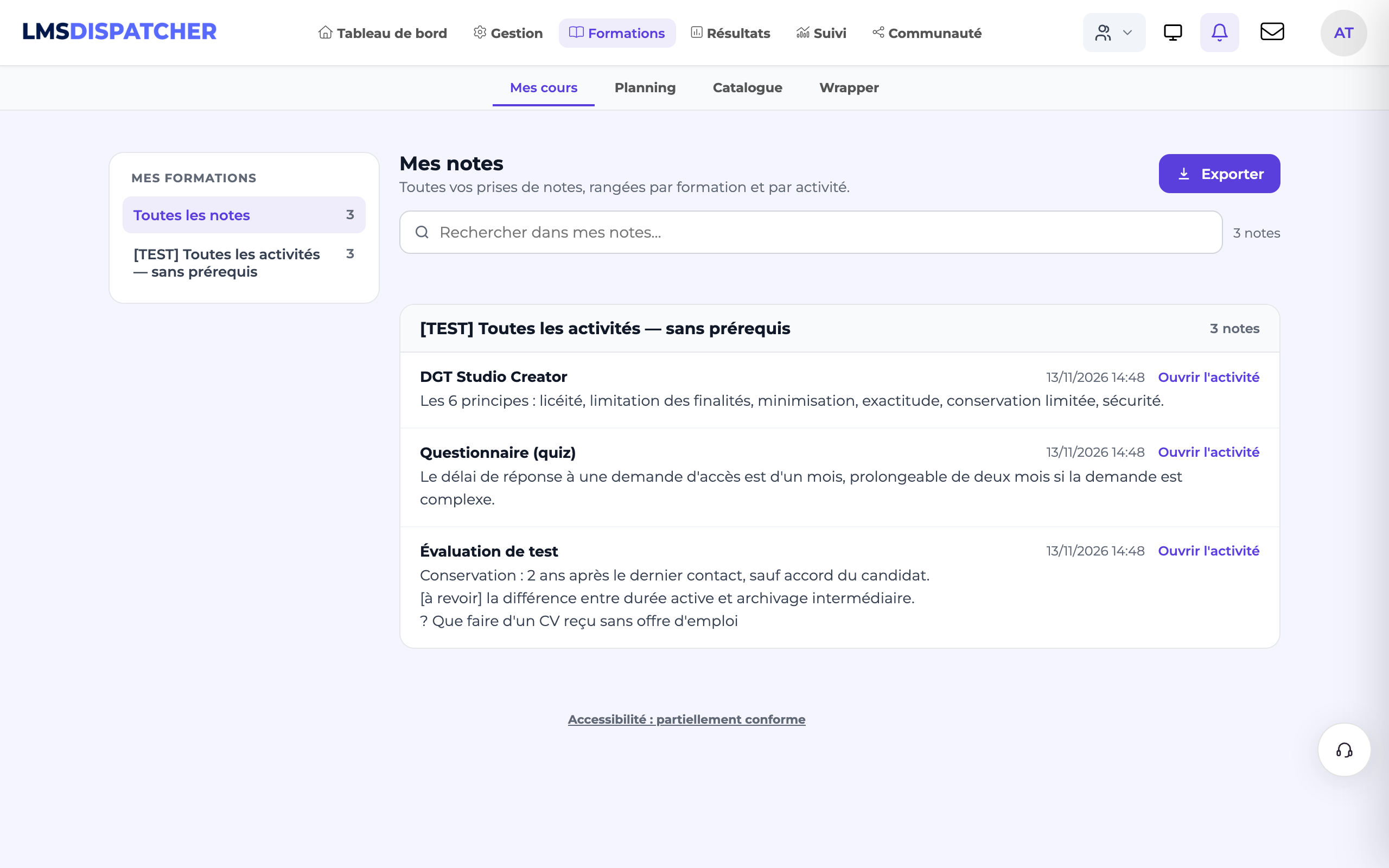
- On the left, My courses: All notes, or one course, with the number of notes in each.
- Each note shows the activity, the date it was last changed and an Open the activity link.
- The Search my notes… field filters as you type and highlights the words found.
Exporting your notes
Choose what to export
Select a course on the left, or stay on All notes. If a search is in progress, the export only contains the notes found.
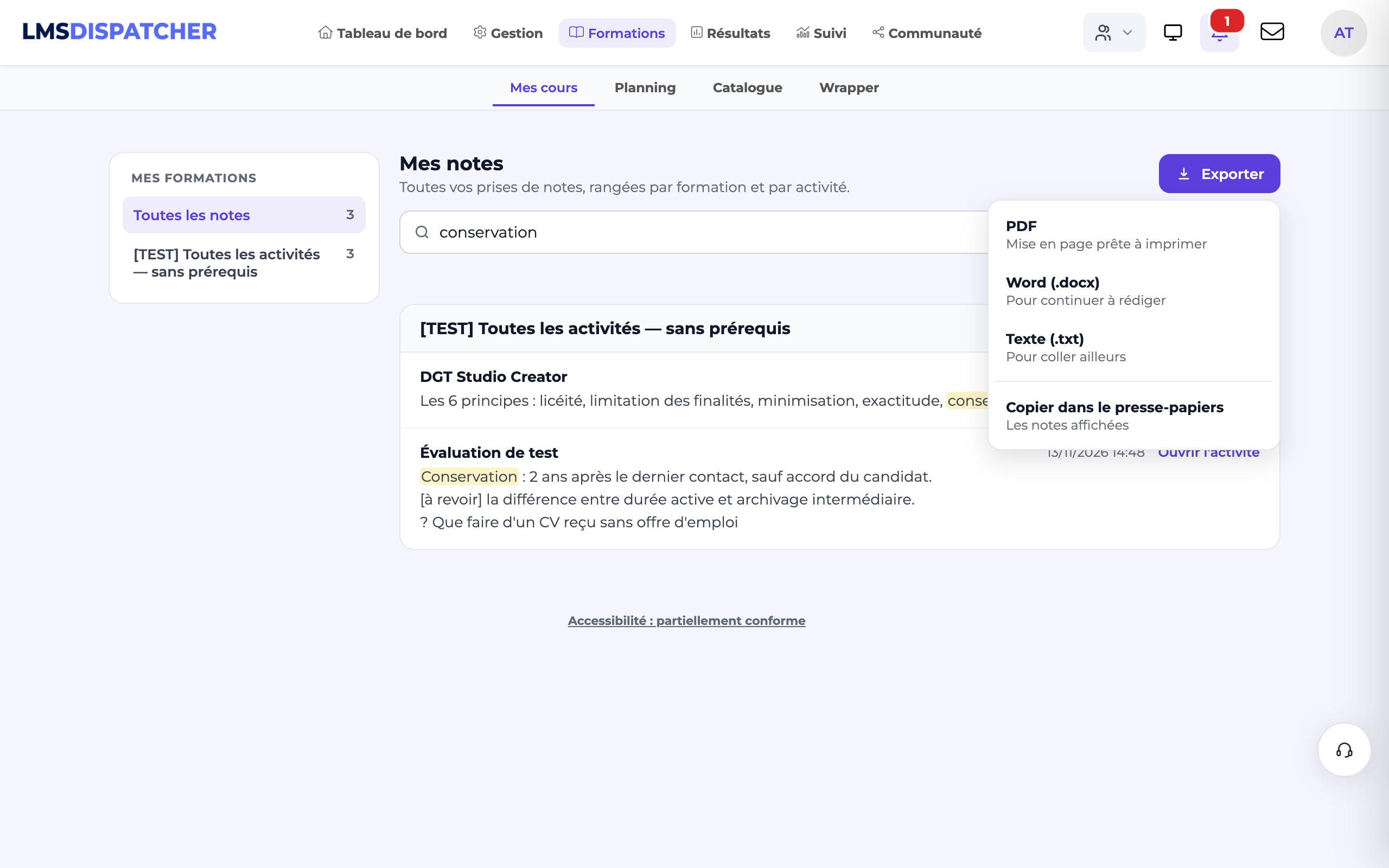
Click "Export" and choose the format:
- PDF — a print-ready, page-numbered layout;
- Word (.docx) — to keep writing or add to your notes;
- Text (.txt) — to paste elsewhere;
- Copy to clipboard — the notes on screen, with no download.
- Notes are personal: neither the trainer nor the administrator can see them in the platform.
- Emptying a note completely deletes it.
- If the connection drops, a message says so and the text stays in the area: it is sent with the next change.
- Notes written in SCORM modules before this version were carried over automatically.
- If an activity is removed from the course, its note is kept, filed under "Deleted activity" with its former title.
- The notepad button only appears if the activity allows it: it is the Notepad box in the navigation bar buttons block, in the activity's Player tab (see Detailed activity options).