- Access to Manage accounts (right required).
- A .csv file with at least the last name, first name and email columns.
Steps
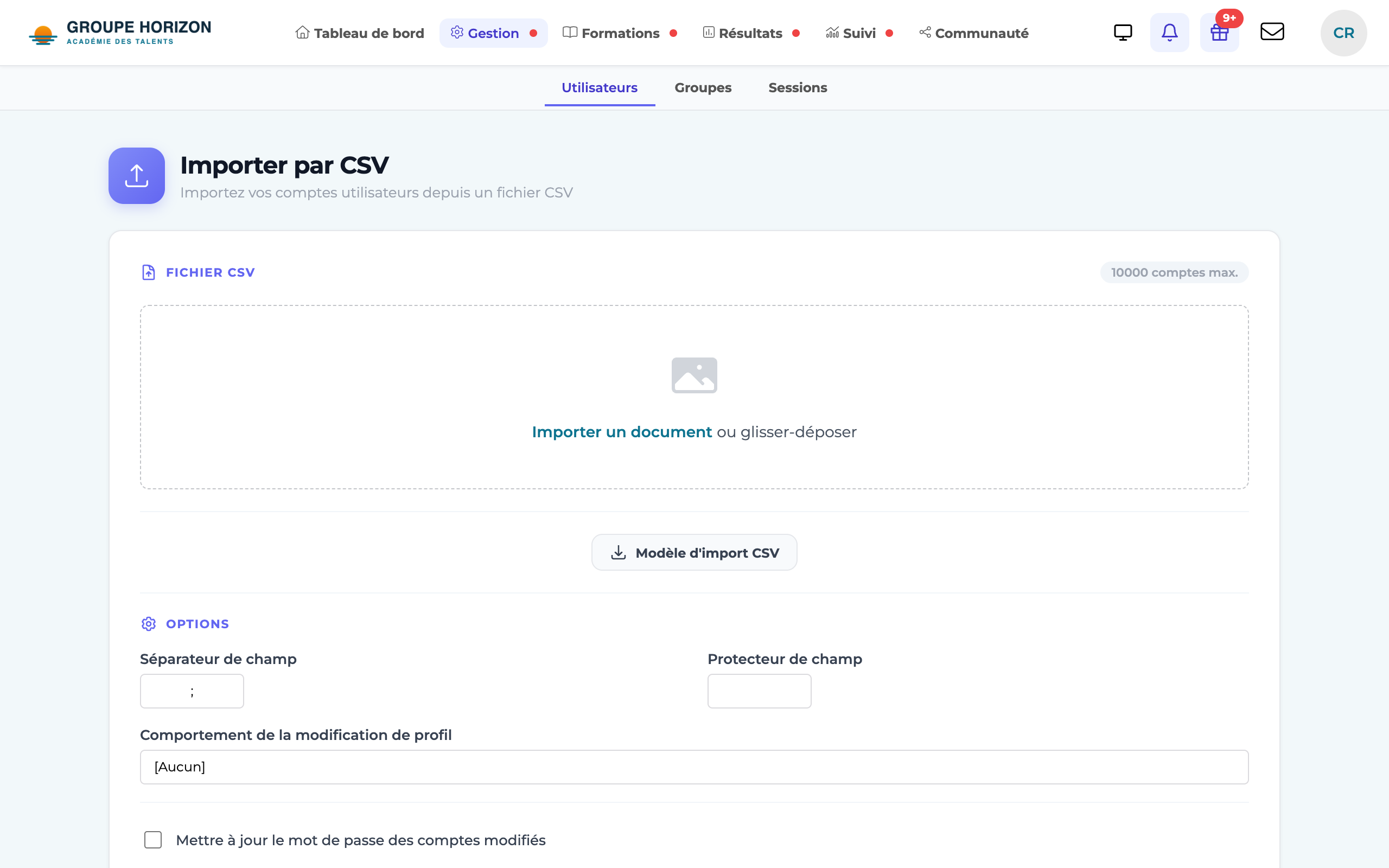
Open the import
Go to
Manage accounts → Import accounts through a CSV file.Check the field separator
By default, DGTLMS uses a semicolon (
;). If your file uses a comma or a tab, change the Field separator setting accordingly.Choose what happens when an account already exists
If an email address in the file matches an existing account, choose either "Modify account profile" or "Transform the account to multi-profile" (to add a second profile without overwriting the existing one).
Handle passwords and login details
Tick the option to update passwords to apply the ones in the file. Tick the option to send a creation email so that each new account receives its login details, then enter the sender address.
Run the import
Click Send. A summary shows the accounts created and updated, as well as any rows in error (missing last name, first name or email).
File format
The first row contains the headers; then one row per user. The import works by column name (not by position): the order does not matter, but the headers must use the exact names below (in lower case — they are French and must stay as they are). UTF-8 encoding is recommended for accented characters. A downloadable CSV template is available on the import page.
nom;prenom;email;login;mot de passe;langue;groupe
Smith;Mary;mary.smith@example.com;msmith;;en;Sales
Jones;Paul;paul.jones@example.com;pjones;;en;Support
Mandatory columns
| Column | Content | Example |
|---|---|---|
nom | Last name | Smith |
prenom | First name | Mary |
email | Email address | mary.smith@example.com |
Common columns (optional)
| Column | Purpose |
|---|---|
login | Username (generated if missing) |
mot de passe | Password in plain text (see below) |
type | Type of account (learner, instructor, administrator…) |
langue | Interface language (fr, en…) |
actif | Whether the account is active |
date de debut / date de fin | Account validity window (start / end date) |
groupe / action_groupe | Group(s) to assign (+ add/remove) |
session / action_session | Session(s) to enrol in (+ add/remove) |
parcours | Course to assign |
site | Space/site the account belongs to |
service · referent | Department and delegate |
authentification | Authentication method (e.g. SSO) |
> Advanced columns are also recognised: style, onglets, onglet par défaut, app mobile, verrouiller, affichage ua, texte accueil, date bloquantes, enfant. Only add them if you need them.
The password column
The mot de passe (password) column is optional, and how it is handled depends on the situation:
- On creation, if the column is empty: a random password is generated (according to the length and character-type settings), or a set-password link (valid for 7 days) is sent by email — the user then chooses their own password.
- On creation, if a password is provided: it is applied as it is.
- For an existing account, the password in the file is applied only if you tick the option to update passwords. Otherwise, the current password is kept.
See "Resend and manage passwords" for the generation settings and self-service reset.
- If no password is provided, a login details email (or a set-password link) is sent automatically on creation.
- Test on 2–3 rows first before importing a large file.
- To update existing accounts, choose the behaviour ("Modify account profile" or "Transform the account to multi-profile") at the import step.