The principle
The PDF to fill in activity shows the learner a PDF form: registration form, placement questionnaire, review, self-assessment grid… They fill in the fields directly in the platform, with no software and no printing. On submission, the platform keeps the filled-in PDF, which the instructor downloads or exports as a ZIP archive.
- Prepare a fillable PDF: a PDF that contains form fields, created with Acrobat, LibreOffice or Word's PDF export. A scanned PDF, or a document simply printed to PDF, has no fields: the learner would not be able to type anything into it.
- Choose the validation mode: is the activity passed as soon as it is submitted, or must an instructor check the answers?
Steps
Add the activity
In the course being edited, click Add an activity, then the "PDF to fill in" tile. The form is organised in tabs: Content (the PDF and the title), Presentation (instructions, description), Tracking and completion (completion mode), Access and Player.
Name the activity
Fill in the Title and, if needed, the Description and the "Mots-clés" (keywords) field.
Upload the PDF
In "Fillable PDF", choose your file. The platform analyses it straight away and shows how many fields it found, for example "12 field(s) to fill in detected.".
Choose validation on submission
Select "Validated when answers are submitted": the activity is passed as soon as the learner submits their answers.
Or choose validation by the instructor
Select "Validated by the trainer": the activity stays pending until the instructor validates the answers or sends the PDF back for correction.
Write the instructions
The "Instructions" field is shown to the learner above the PDF. Say what they must fill in and by when.
Set the rest
Duration, access window, chapter and launch page are set as for any activity.
Save
Click Confirm, then save the course.
What the learner does
Open the activity
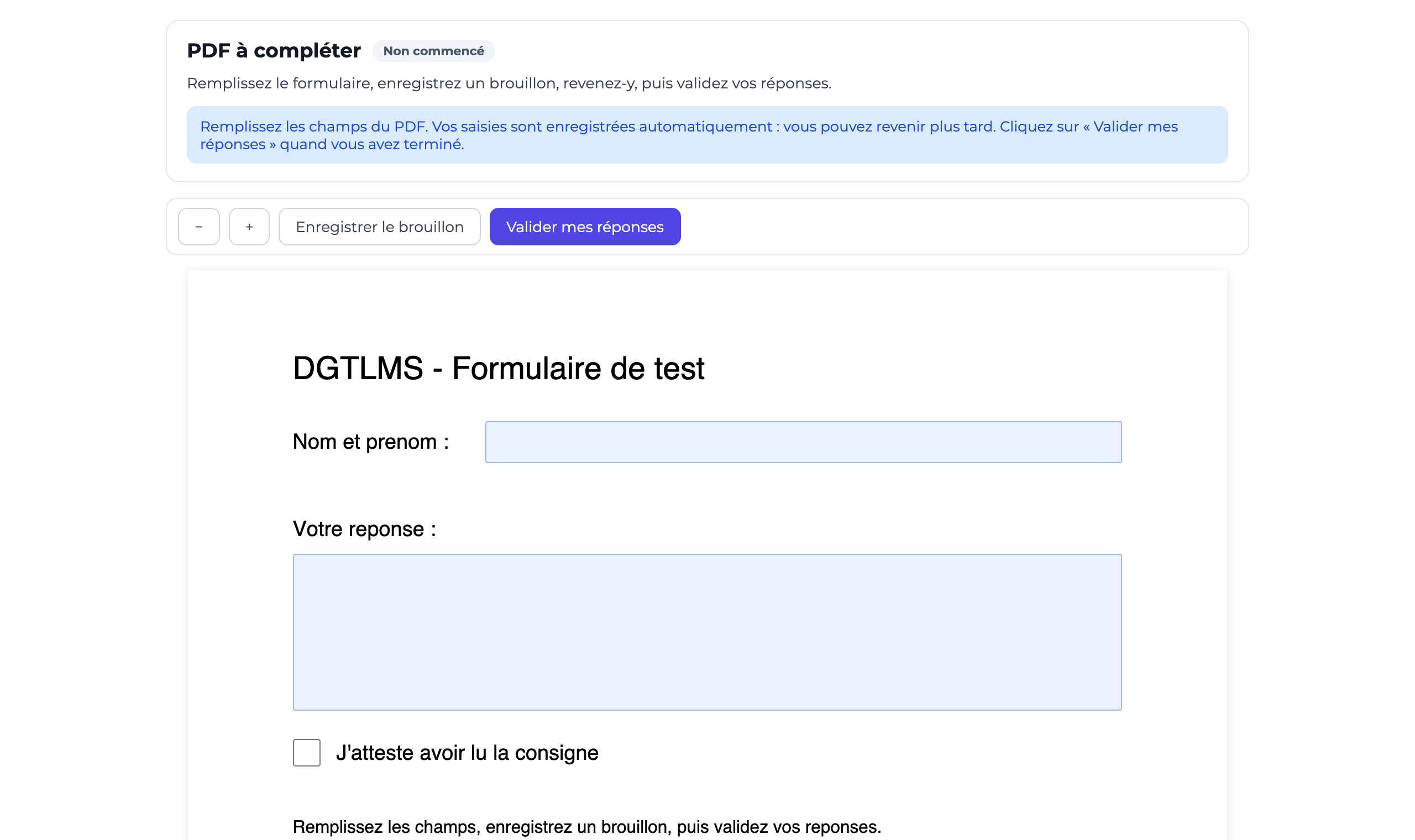
The PDF is displayed with its fields, below the instructions. The + and − buttons zoom in and out.
Fill in the fields
Text, tick boxes, lists: they type directly into the PDF.
Let the draft save itself
Their entries are saved automatically a few seconds after each change, and also when they leave the page. The message "Draft saved at 10:42" confirms it. The "Save draft" button forces a save.
Come back later
When they reopen the activity, their entries are reloaded into the PDF.
Submit
They click "Submit my answers" and confirm. Their answers are then locked: they can no longer change them, unless the instructor sends the PDF back for correction.
Download their copy
After submission, the "Download my PDF" button gives them the filled-in PDF.
What the instructor does
Open the activity
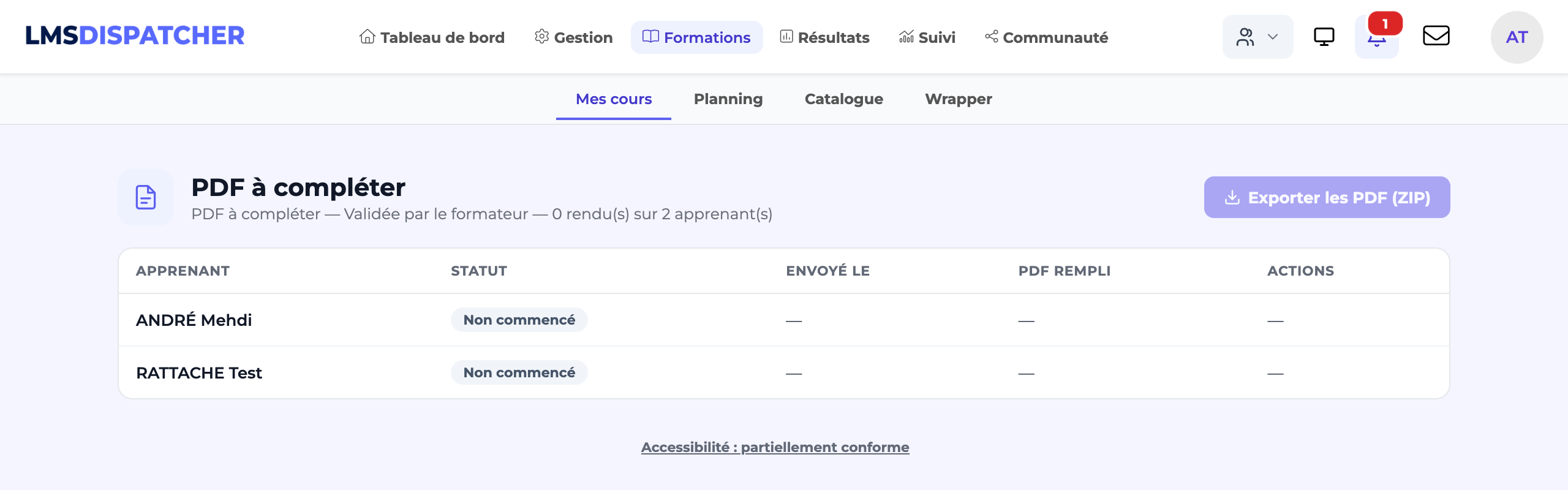
Open the activity from the course: an instructor or an administrator does not fill in the form, they land on the list of learners. The header shows the validation mode and the number of submissions, for example "8 submitted out of 12 learner(s)".
Read the answers
For each learner: their status, the submission date ("Submitted on") and the Download link for the filled-in PDF. Submissions waiting to be processed appear at the top of the list.
Validate a submission
Enter a "Comment (optional)" if needed, then click Validate. The activity is passed for that learner.
Send back for correction
Enter a comment explaining what to correct, then click "Send back for correction". The learner sees the message "The trainer asks you to correct your answers." followed by your comment, and can edit the PDF again.
Export all the PDFs
"Export PDFs (ZIP)" downloads an archive of all the filled-in PDFs, named "SURNAME First name - activity title".
Statuses
| Status | Meaning |
|---|---|
| Not started | The learner has not entered anything yet. |
| Draft | They have started filling in, without submitting. |
| Submitted | They have submitted their answers; these are waiting for the instructor (validation by the instructor). |
| To be corrected | The instructor has sent the PDF back; the learner can edit it and submit it again. |
| Validated | The answers are accepted: the activity is passed. |
- Tracking: with validation on submission, the activity becomes passed as soon as it is submitted. With validation by the instructor, it stays in progress until the instructor decides; sending it back for correction puts it back in progress.
- Even an answer that has already been validated can be sent back for correction, including with validation on submission.
- The instructor's comment is also shown to the learner when their answers are validated.
- The instructor only sees the learners they are allowed to see.
- Filled-in PDFs contain personal data: they are never reachable through a direct address. A learner only gets their own; an instructor, those of their learners.
- The instructions are plain text, with no formatting (4,000 characters at most).
- If the analysis shows "No form fields detected", the learner will not be able to fill anything in. You can still save: replace the file with a fillable PDF.
- Replacing the PDF of an activity learners have already started is risky: their drafts may no longer match the new fields.
- The PDF is required when you create the activity: with no file, or with a file that is not a PDF, the form shows "Choose a PDF file.".
- The message "The database must be updated (migration 179)" means the platform is not up to date yet: contact DGT Concept.