How to add an activity
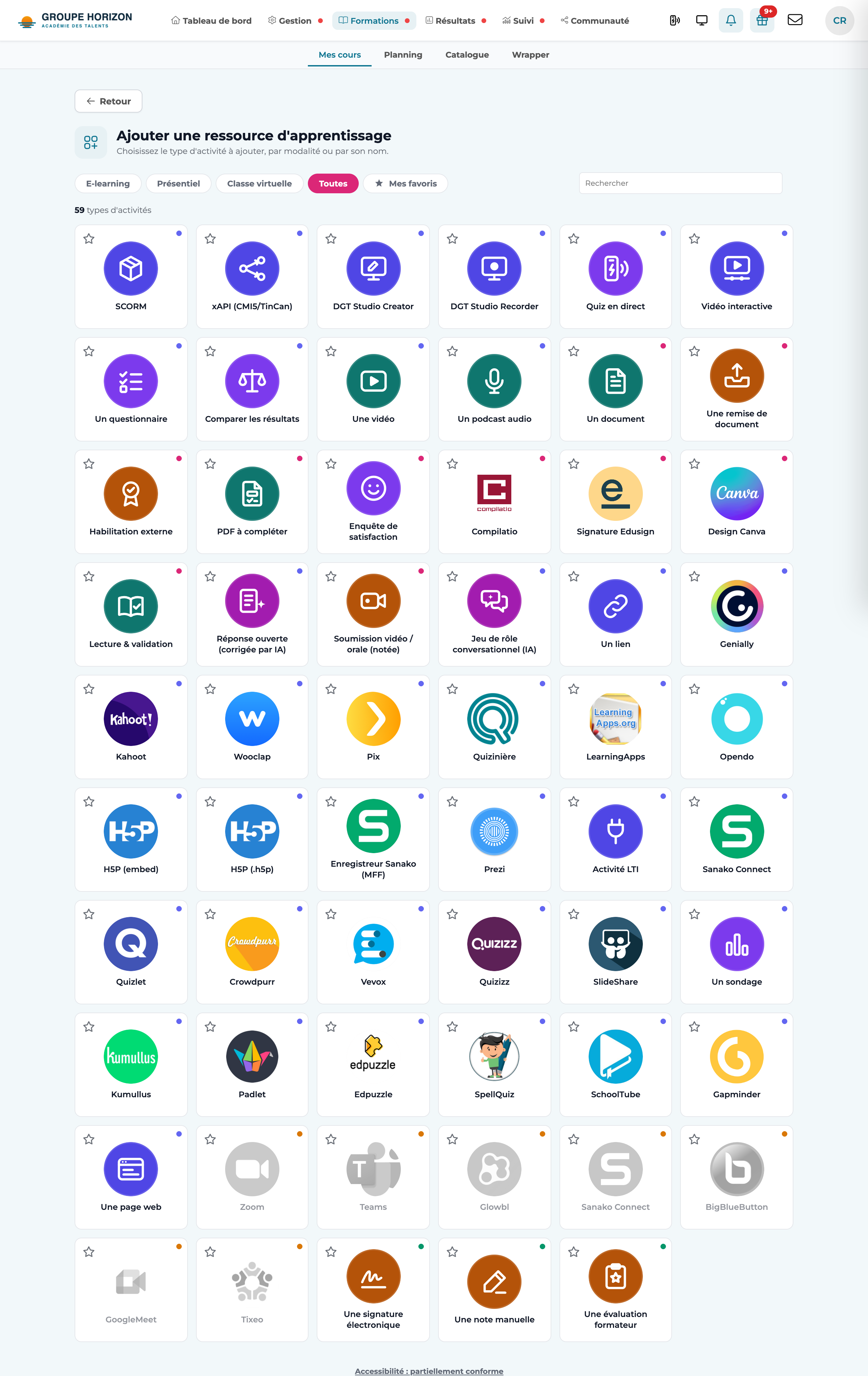
From a course being edited, click Add an activity: the library opens. Each activity carries a delivery mode badge, and you can search for it or mark it as a favourite. The four delivery modes are:
| Badge | Delivery mode | Use |
|---|---|---|
| e-learning | Remote, self-paced | modules, quizzes, videos, interactive tools |
| Virtual class | Remote, live | built-in video conferencing |
| Face-to-face | In the classroom | attendance signature, marks, assessments |
| Blended | Remote + face-to-face | document submissions, validations |
E-learning
Content followed independently, with traceability.
| Activity | What it is |
|---|---|
| SCORM | Standard e-learning module (SCORM 1.2 / 2004) |
| xAPI (cmi5 / TinCan) | Package with detailed records, collected by the internal LRS |
| DGT Studio Creator | Built-in module editor (no external tool) |
| DGT Studio Recorder | Import of a narrated PPTX + screen recording |
| Live quiz | Questions projected in the room, answers from smartphones, leaderboard |
| Interactive video | DGT Studio module opened on a video that stops to ask questions (in detail) |
| Questionnaire | Native quiz (marked assessment or practice) |
| Compare results | Results of several quizzes or modules side by side, question by question (before / after) (in detail) |
| Video (WebTV) | Hosted video with viewing tracking |
| Audio podcast | Audio content |
| Web page | Rich content written in the editor |
| Link | Pointer to an external resource |
| Survey | Collection of opinions (unmarked) |
| Open answer (AI-graded) | Case study / written answer assessed by AI |
| Conversational role-play (AI) | Role-play dialogue with the AI |
| H5P | Interactive content — embedded or as an .h5p file (xAPI records) |
| Sanako recorder (MFF) | Dual-track player: the learner listens to the material, records themselves and does the exercises of the .mff package (in detail) |
| LTI activity | Connection to a third-party LTI-compatible tool |
Built-in third-party tools (added via link / embed): Genially, Prezi, Canva, Kahoot, Wooclap, Pix, Quizinière, LearningApps, Opendo, Quizlet, Quizizz, Crowdpurr, Vevox, SlideShare, Kumullus, Padlet, Edpuzzle, SpellQuiz, SchoolTube, Gapminder, Sanako Connect.
Virtual classroom
Video conferencing created from the course. Each tool becomes available as soon as its keys are filled in in the configuration; otherwise the activity appears greyed out.
| Activity | What it is |
|---|---|
| Zoom | Scheduled Zoom meeting |
| Microsoft Teams | Teams meeting |
| Google Meet | Meet meeting |
| BigBlueButton | Open-source virtual classroom |
| Glowbl | Glowbl collaborative room |
| Sanako Connect | Sanako language class |
| Tixeo | Sovereign video conferencing (secure, EU) |
Submission & validation (blended)
To have learners produce and hand in work.
| Activity | What it is |
|---|---|
| Document | Material to consult (PDF, office document…) |
| Document submission | Learners upload their work |
| Submission + plagiarism check (Compilatio) | Submission with a plagiarism analysis started by the instructor |
| Edusign signature | Attendance or document signature (validated by webhook) |
| Read & acknowledge | Rich content + an "I have read" box to tick |
| Video / oral submission (graded) | The learner records a video/audio answer, assessed afterwards |
| External certification | The learner uploads a certificate obtained outside the platform; the certification joins their record |
| PDF to fill in | The learner fills in a PDF form in the platform; the instructor collects the filled-in PDFs (in detail) |
| Satisfaction survey | Short questionnaire from which the platform derives a satisfaction rate and an NPS (in detail) |
Face-to-face & assessment
For classroom time and manual marking.
| Activity | What it is |
|---|---|
| Electronic signature | Attendance signature for a face-to-face session |
| Manual mark | Mark entered by the instructor |
| Instructor assessment | Detailed assessment grid (multiple criteria) |
Each activity in detail
Each family has its own detailed article (what each activity is for, how to create it, its options):
- E-learning activities in detail — modules, quizzes, video, interactive video, audio, web page, AI activities, H5P, Sanako recorder, LTI.
- Third-party interactive tools — Genially, Canva, Kahoot, Wooclap, Pix, Quizinière, LearningApps, Padlet, Edpuzzle… and how to embed them.
- Virtual classrooms in detail — Zoom, Teams, Meet, BigBlueButton, Glowbl, Sanako, Tixeo.
- Submission, hand-in and validation in detail — document, submission, plagiarism check, signature, read-and-acknowledge, video/oral submission, external certification, PDF to fill in, satisfaction survey.
- Face-to-face and assessment in detail — attendance signature, manual mark, assessment grid.
- AI activities (open answer, role-play) appear greyed out without active AI credits.
- Virtual classrooms depend on each tool's configuration keys: a greyed-out activity = tool not configured.
- Mark your most-used activities as favourites to find them in one click.
- Some face-to-face activities (notice to attend, AFEST on-the-job training, immediate post-training evaluation) exist but are hidden by default: contact DGT Concept to re-enable them.