How it works
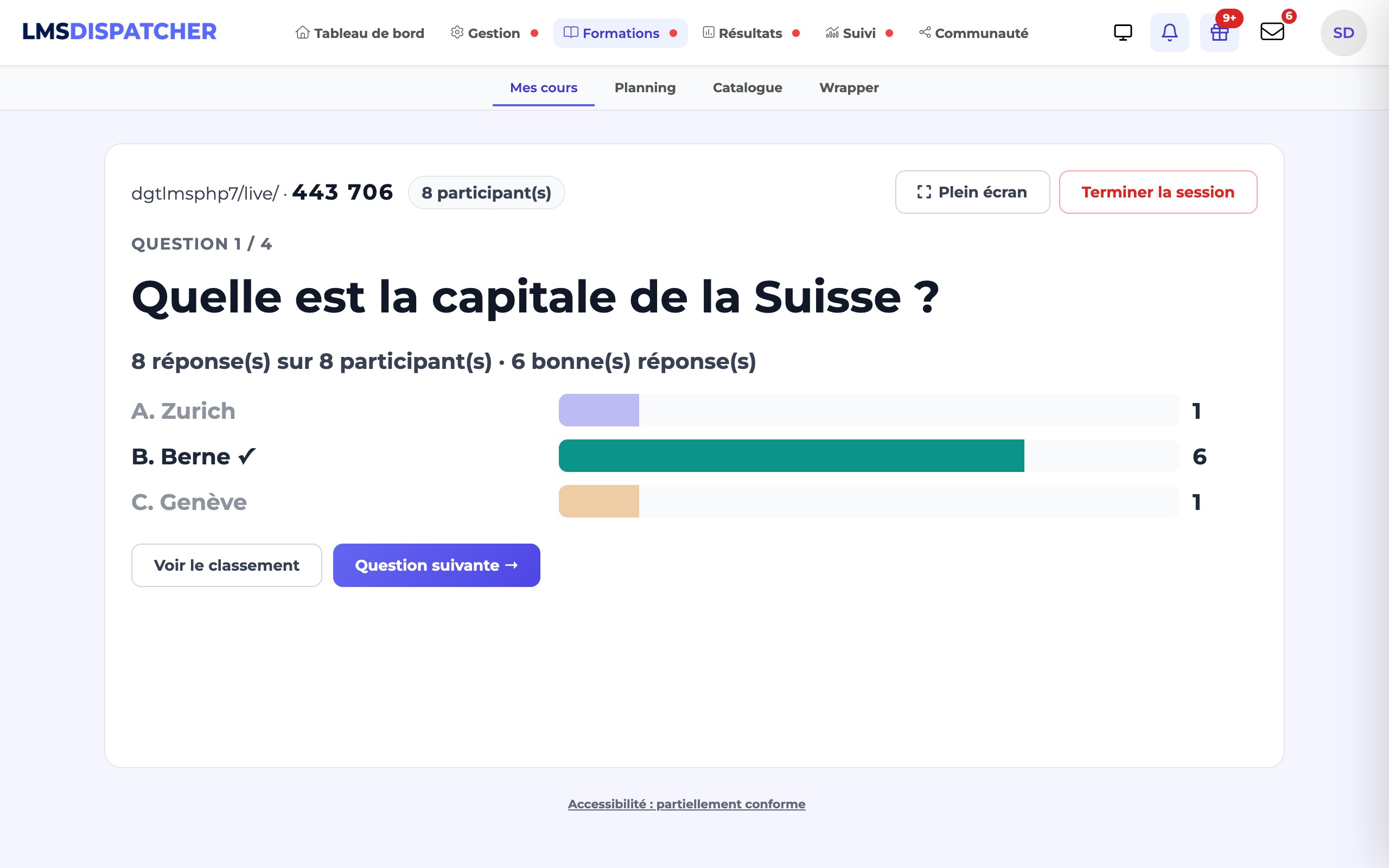
The live quiz is a course activity designed for the training room (or the virtual classroom): the instructor projects the questions one by one, and the learners answer from their smartphones. Each question has its own countdown; once time is up, the screen shows how the answers were distributed, the correct answer and, if you wish, a leaderboard.
Unlike external tools of the same kind, everything happens within the platform:
- learners answer logged in to their account: you know who answered what;
- each learner's score goes into their tracking, as with any other activity in the course;
- there is nothing to install: a browser is enough, on the phone as on the instructor's computer.
- A course open for editing, and the right to modify it.
- Learners enrolled in the course: only they can join the session.
- In the room: a video projector, and a network (Wi-Fi or 4G) for the phones.
Create the activity
Open the course for editing
then click Add a learning unit.
Choose Live quiz
in the E-learning family, just after DGT Studio Recorder.
Give it a title
and, if you wish, instructions (Instructions shown to learners): they are displayed in the course until the instructor starts the session.
Set the leaderboard and scoring
see below.
Write your questions
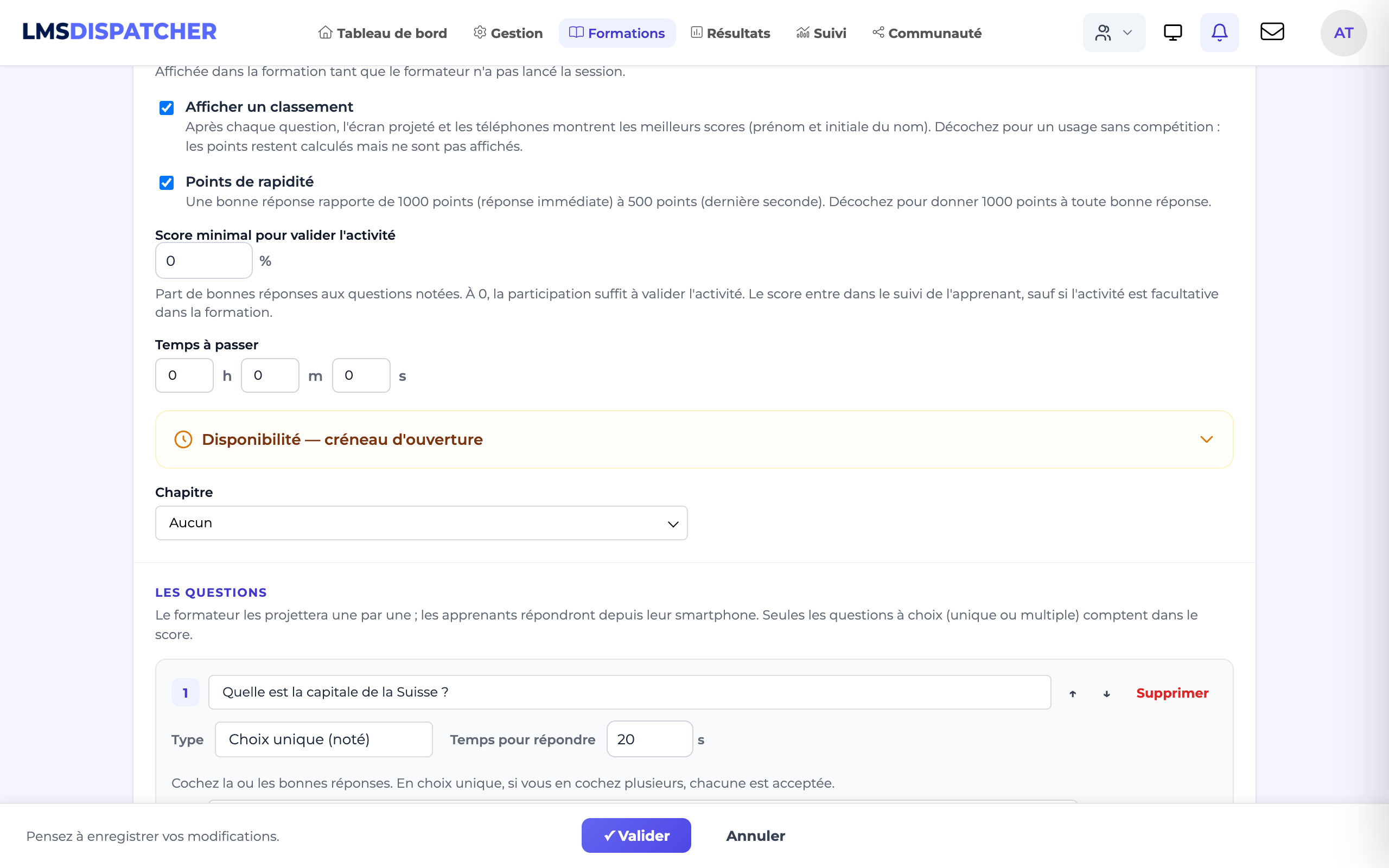
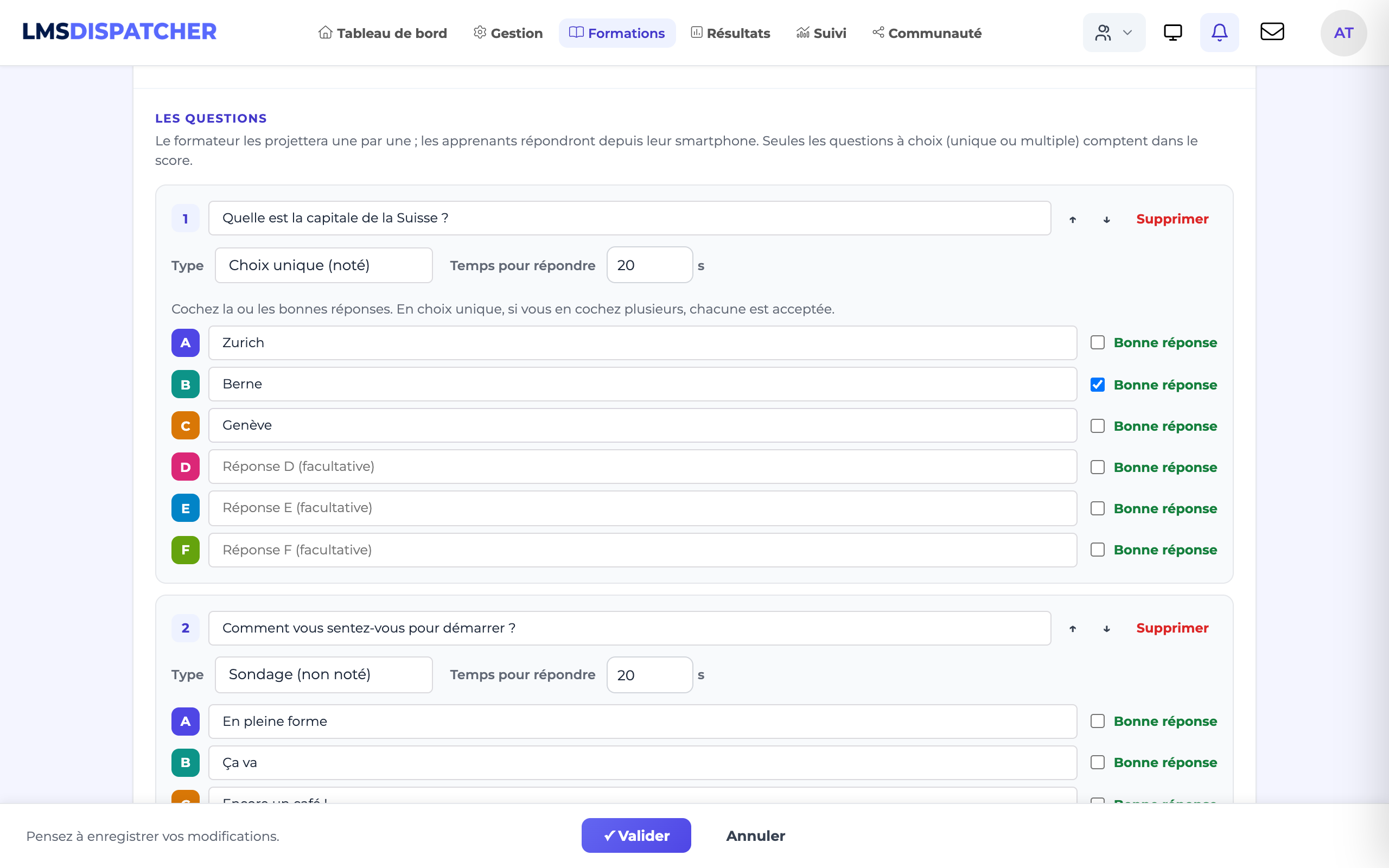
two starter questions are suggested; edit them, delete them, and add your own with Add a question.
Confirm
then save the course.
The eight question types
| Type | What the learner does | Counts towards the score |
|---|---|---|
| Single choice (scored) | Taps one answer | Yes |
| Multiple choice (scored) | Selects several answers, then submits | Yes — correct only if the selection is exactly right |
| True / False | Taps one of the two large buttons | Yes |
| Estimate (number) | Types a number | Yes — correct within the tolerance; a close answer still earns points |
| Short answer | Types one or two words | Yes — correct if the answer matches one of the accepted variants |
| Poll (not scored) | Taps one answer | No |
| Scale (not scored) | Taps a value, from 1 to 5 or from 0 to 10 for example | No |
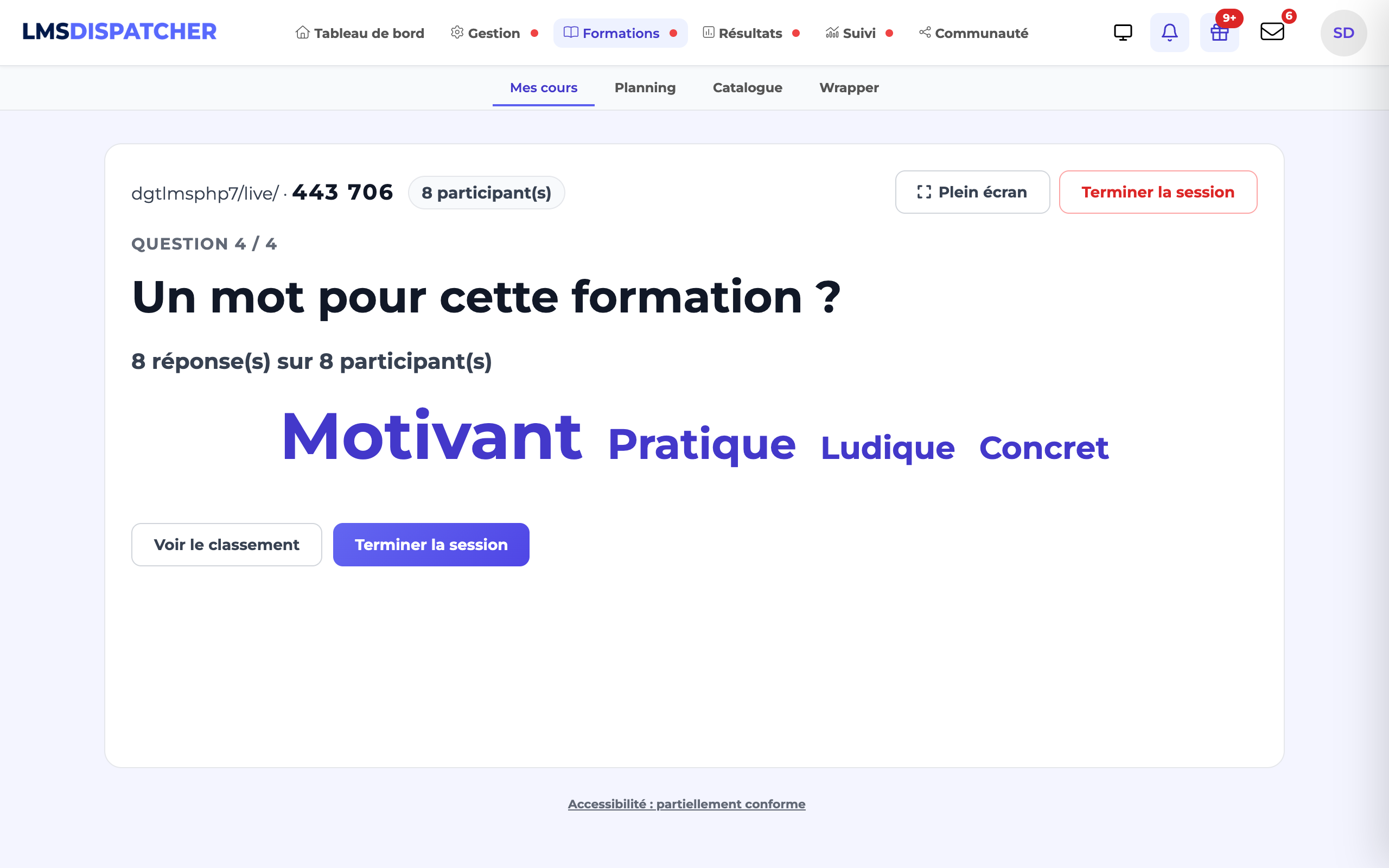
| Word cloud (not scored) | Writes a few words | No |
Choice questions offer up to six answers (A to F); boxes left empty are ignored. Tick the correct answer(s) for scored questions: for single choice, if you tick several, each one is accepted. The Time to answer is set question by question (20 seconds by default, from 5 to 300).
The four other types have their own settings, which appear as soon as you choose them:
- True / False — only two answers, prefilled True and False (you can rename them, for example "Agree" / "Disagree"); tick the correct one.
- Estimate — the correct value, an optional tolerance (± 2: 1967 to 1971 are correct for 1969), a unit shown next to the input (km, %, €…) and, if you wish, a lowest and a highest accepted value: an entry outside this range is refused on the phone. An answer outside the tolerance but close still earns up to 500 points ("Almost!"), without counting as correct in the score. After the question, the screen shows the correct value, the closest answer (with its author's first name if the leaderboard is shown), the median and a histogram of the answers.
- Short answer — one accepted answer per line (10 at most), for example "Cairo" and "Al-Qahira". Case, accents and punctuation do not matter, and one typo is tolerated for answers of 6 letters or more. The screen then groups identical answers, the correct ones in green.
- Scale — from 0 or 1 to a maximum value between 2 and 10, with an optional label for each end ("Not at all" / "Completely"). Not scored: the screen shows the average and the distribution of the answers.
To change the order, drag a question by its handle (to the left of its number), or focus the handle and use the up and down arrow keys. The Compact view link above the list shrinks each question to one line: handy for reorganising a long series. Each question keeps its identity: renaming or moving it does not mix up the answers from past sessions.
Image, explanation and bonus question
Under the answers of each question, the collapsed Image, explanation, bonus panel adds:
- an image (JPG, PNG, GIF or WebP, 10 MB maximum), shown under the question on the projected screen and on phones: a diagram to read, a part to recognise, a sign to interpret;
- an explanation, shown with the results under the heading Did you know?, on screen and on the phone. It is only sent to phones when the question closes, so it cannot give the answer away;
- Bonus question (scored questions only): a correct answer earns twice as many points, and a ★ Points ×2 badge announces it during the question. The percentage score used to pass the activity is not changed.
Import or generate questions
The Import or generate questions panel, above the list, saves you typing everything by hand. Imported questions are added to the end of the list: review them, then save.
Generate the questions with AI
If AI is enabled on your platform, the panel starts with Generate with AI: describe the topic, or choose an activity in From the content of (DGT Studio module, page, document, SCORM package…), set the number of questions, then click Generate the questions. In about half a minute, the AI writes short questions that are easy to read on screen, with their answers, their explanation, a time to answer and, from 8 questions, one bonus question. The AI varies the types (choice, true / false, estimate, short answer). The Start with a poll or a scale and end with a word cloud option adds a welcome question and a closing word cloud.
The questions are added to the list like an import: review and correct them before saving. Each generation uses AI credits (the cost is shown next to the button). An activity with too little text is rejected: describe the topic instead.
Import Markdown or a CSV file
- Paste Markdown: one question per line starting with
?, followed by its answers- [x](correct) or- [ ](wrong). Without any indication, one correct answer gives a single choice and several give a multiple choice.(multiple),(true-false),(estimate),(short),(scale),(poll)and(cloud)after the?set the type. The=lines give the expected answer:= truefor a true / false,= 1969or= 71 ± 3for an estimate (withunit: %andrange: 0 - 100as options), one= Cairoline per variant for a short answer;scale: 0-10 | Not at all | Completelysets up a scale.duration: 30under the question sets the time to answer;explication: …andbonus: ouifill in the panel described above (a> …feedback also serves as the explanation). - Copy the prompt for AI: paste it into your AI (ChatGPT, Claude, Mistral…) with your topic, then paste its answer into the Markdown area.
- Import a CSV file: same format as the questionnaire import (DGTLMS or iSpring); Download an example provides a template. A question with no correct answer becomes a poll; a text-entry question becomes a short answer if it has expected answers, a word cloud otherwise; a "True" / "False" question becomes a true / false.
? What is the capital of Italy?
- [ ] Milan
- [x] Rome
duration: 15

? (poll) How do you feel this morning?
- Ready
- Still asleep

? (true-false) The Rhône flows into the Mediterranean.
= true

? (estimate) In what year did man first walk on the Moon?
= 1969

? (short) What is the capital of Egypt?
= Cairo
= Al-Qahira

? (scale) How comfortable are you with this topic?
scale: 1-5 | Not at all | Completely

? (cloud) One word to sum up the session?
Beyond six answers, the extra ones are removed; types with no live equivalent (matching, ordering, fill-in-the-blanks…) are skipped and listed.
Leaderboard, speed and passing
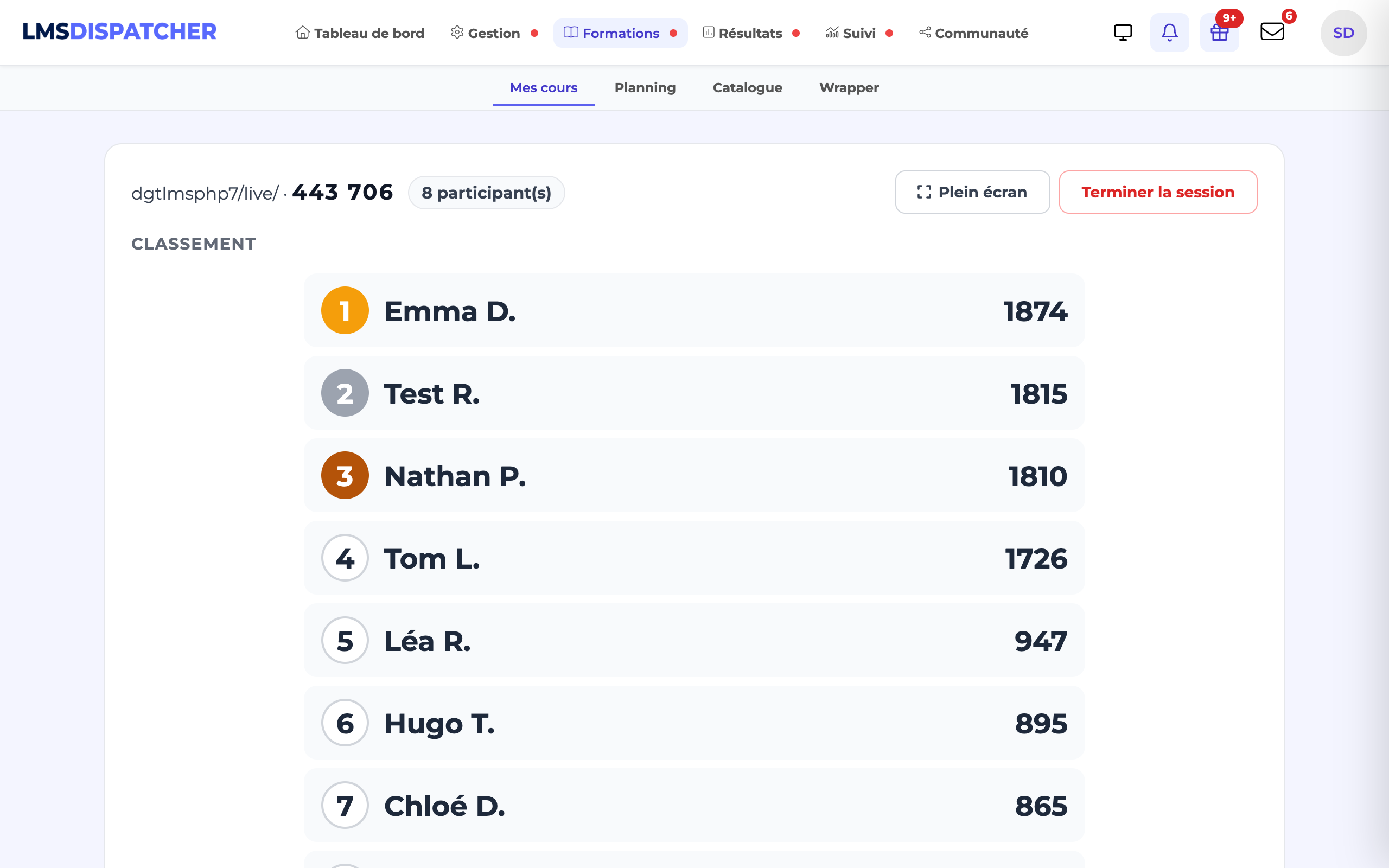
- Show a leaderboard — after each question, the projected screen and the phones show the top scores, with only the first name and the initial of the last name. Untick it for non-competitive use (an opening poll, gathering opinions): points are still calculated, but not shown.
- Speed points — a correct answer earns from 1000 points (immediate answer) to 500 points (last second). Answering correctly at the last moment is therefore still worth half: speed separates the players, it does not penalise someone who reads the question to the end. Unticked, every correct answer is worth 1000 points.
- Minimum score to pass the activity — this is the share of correct answers to scored questions. At 0, simply taking part is enough to pass the activity.
Play in teams
In the Tracking and completion tab, tick Play in teams, choose the number of teams (2 to 6), rename them if you wish (each has its own colour), then the allocation:
- Everyone chooses their team when joining: on their phone, the learner taps their team's button. They can change until the quiz starts; if they have not chosen, they join the smallest team at their first answer.
- Automatic, balanced allocation: each newcomer joins the team with the fewest members.
On the projected screen, the welcome page groups first names by team. After each question, Show leaderboard first displays the team ranking, then the individual leaderboard if you turned it on. Teams are ranked on the average points of their members, so a larger team has no advantage. Each learner sees their team's place on their phone; the summary and the CSV export show everyone's team. The activity score stays individual.
Run a session
Two routes lead to the hosting screen:
- From the top bar — the Launch a live quiz button (phone icon, next to the video call), reserved for instructors and administrators, lists the live quizzes of all the courses you can see, with a search box (Search for a quiz or a course…). Choose a quiz and click Start a session: the session starts straight away. Administrators also see the course owner and the last session (who ran it, and when); the History link opens the activity page with its past sessions.
- From the course — open the activity: as an instructor, you go straight to the hosting screen.
Start a session
when you are ready to run it. A 6-digit code and a QR code are displayed: project this screen (Full screen button).
Let the learners join
they scan the QR code, or open the address shown (
your-platform/live/) and enter the code. Their first names appear as they arrive.Start
the first question is displayed on the screen and on the phones, with the countdown and the number of answers received.
Show the results
the question closes by itself when time is up or when everyone has answered; you can also close it earlier with Show results.
Comment, then move on
Show leaderboard if you have enabled it, then Next question.
End the session
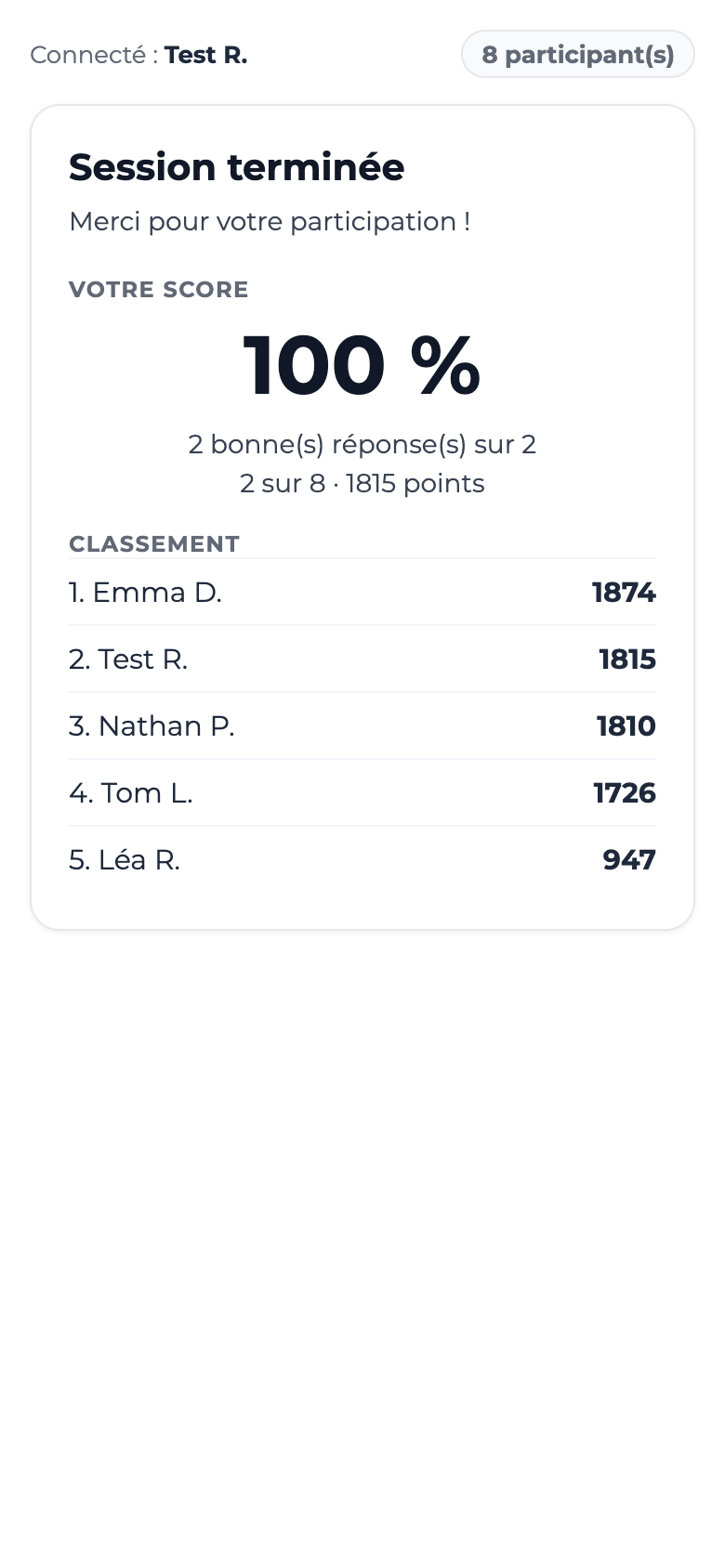
after the last question. The podium appears: 3rd, then 2nd place are revealed, and 1st place arrives with a fanfare and confetti (the team podium if the individual leaderboard is turned off). View summary then opens the session summary. The scores are recorded in the participants' tracking as soon as the session ends; on their phones, the top three see their medal.
The projected screen has sound: a chime when each question opens, a tick every second during the last 5 seconds, a gong when time is up, a soft signal each time someone joins the room, and the podium fanfare. The Sound button, next to Full screen, turns it off or back on; your choice is remembered for the following sessions. The sounds are produced by the browser: nothing to download, the computer connected to the video projector just needs its sound turned on.
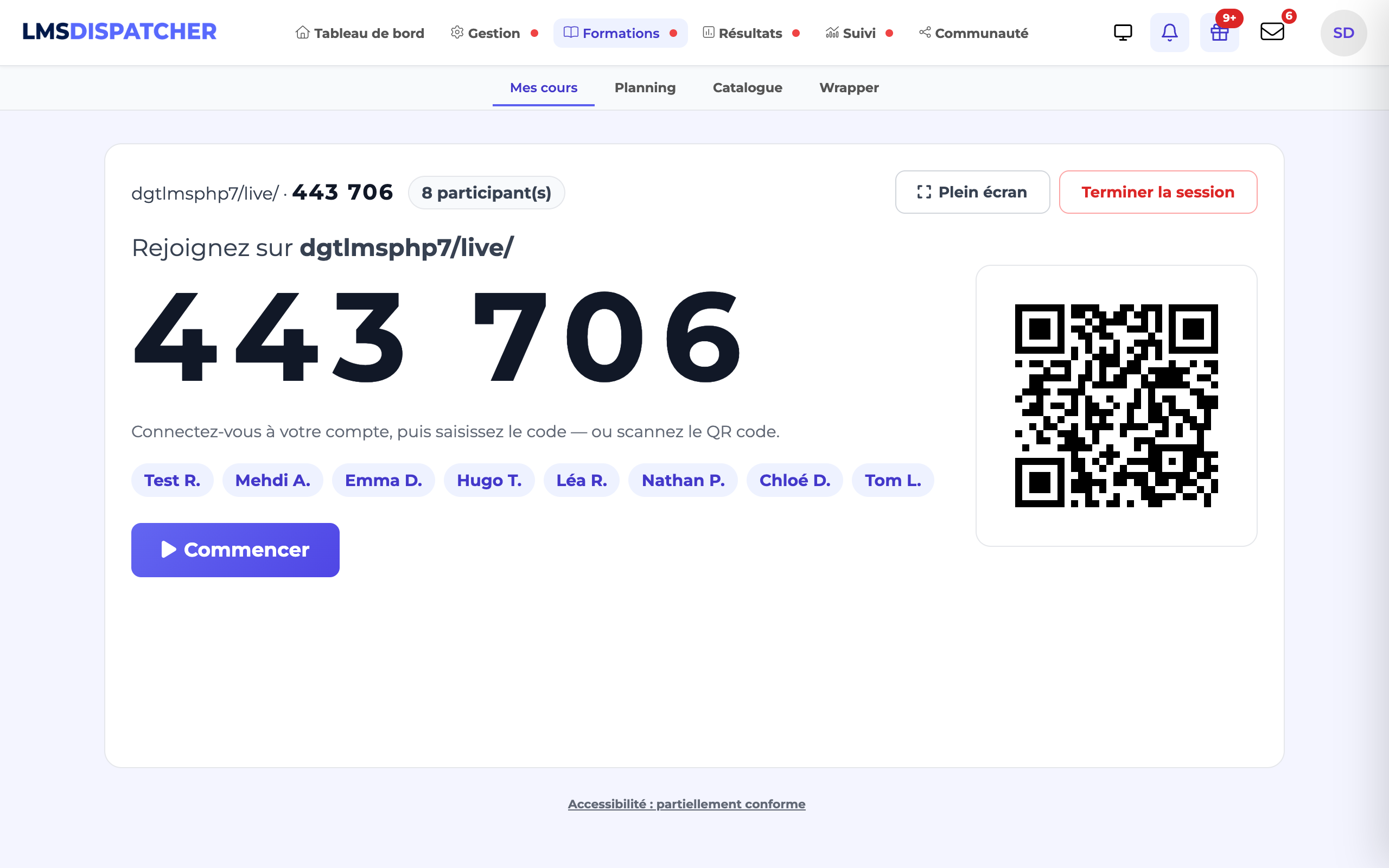
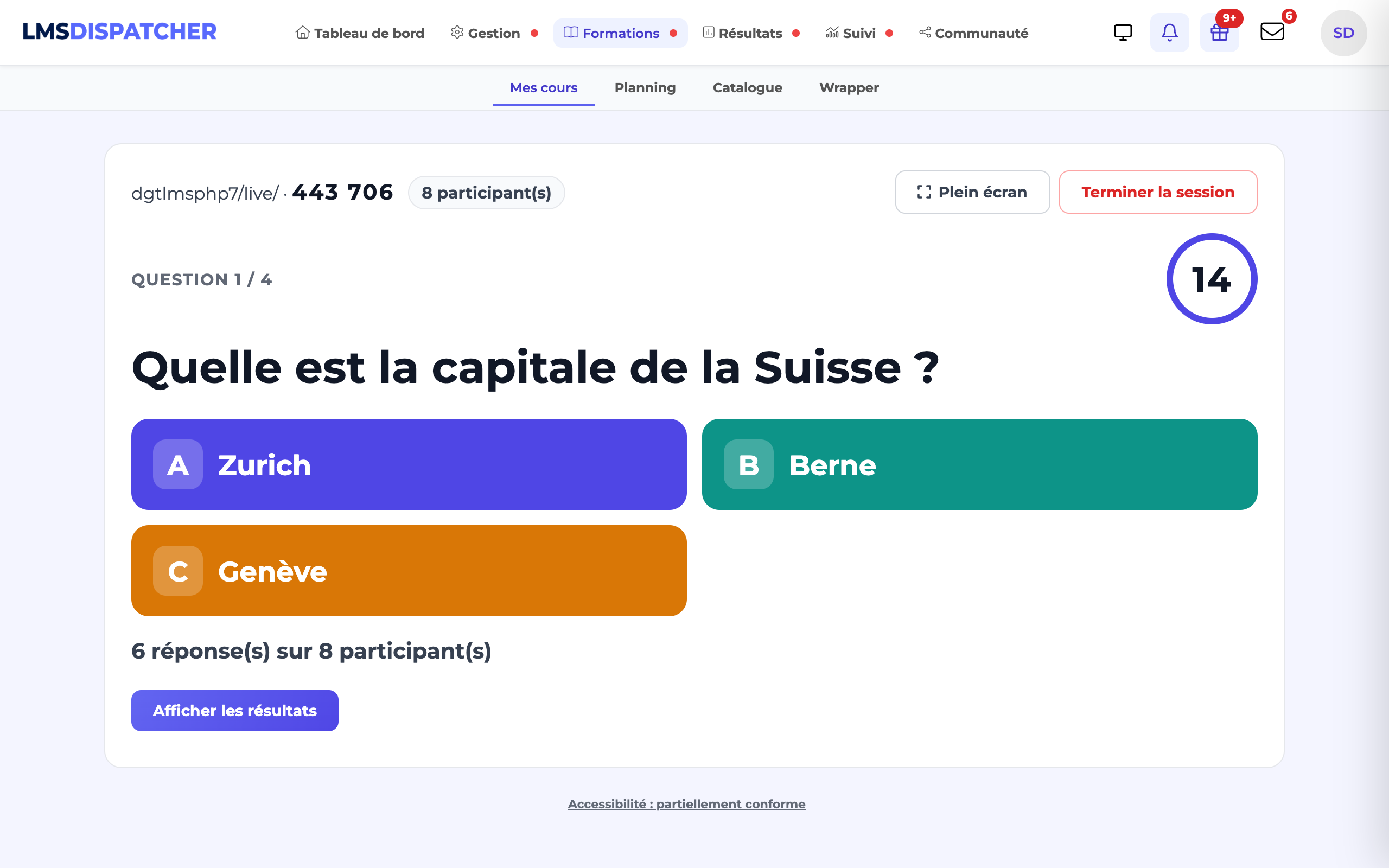
You can start as many sessions as you have groups: each one has its own code, and the list of past sessions remains available under the Start a session button.
Open the session to guests
For a trade show, an information meeting or an audience without an account on the platform, a session can welcome guests without an account.
Check that guests are allowed
The option Live quiz: allow guests without an account (access via QR code, first and last name entered) under Administration › Technical configuration › Advanced configuration must be set to Yes; an administrator sets it to No to forbid guests on the platform.
Open the session to guests
When launching it (from the top bar or from the course), tick Open to guests without an account before clicking Start a session.
Have them scan the QR code
The projected screen invites people to scan the QR code. It carries a secret specific to the session: only this QR code gives guest access, the 6-digit code alone is not enough.
Guests enter their first and last name
Then they play exactly like learners, on the same phone screen.
Good to know:
- No tracking — a guest has no account: their results stay in the session summary and export, marked Guest, without entering any course tracking. A learner already logged in and enrolled in the course who scans the QR code plays under their own account: their result goes into their tracking.
- Protected names — the instructor sees the first and last name; the projected screen only shows the first name and the initial of the last name. They are erased after 30 days: the answers remain in the statistics, and the person then appears as "Guest".
- Remove a guest — on the projected screen, the cross next to their name removes them from the quiz, after confirmation; their answers are deleted. Handy for a fanciful nickname.
- 300 participants at most per session: beyond that, a guest sees "This session is full: you cannot join it."
- Guest access is refused if the option is set to No, if the session was not opened to guests or if it has ended.
On the learner's side
The learner needs their account (except in a session opened to guests, see above): if they are not logged in when they scan the QR code, the login page is displayed, then they go straight back to the quiz. An account that is not enrolled in the course is refused with a clear message.
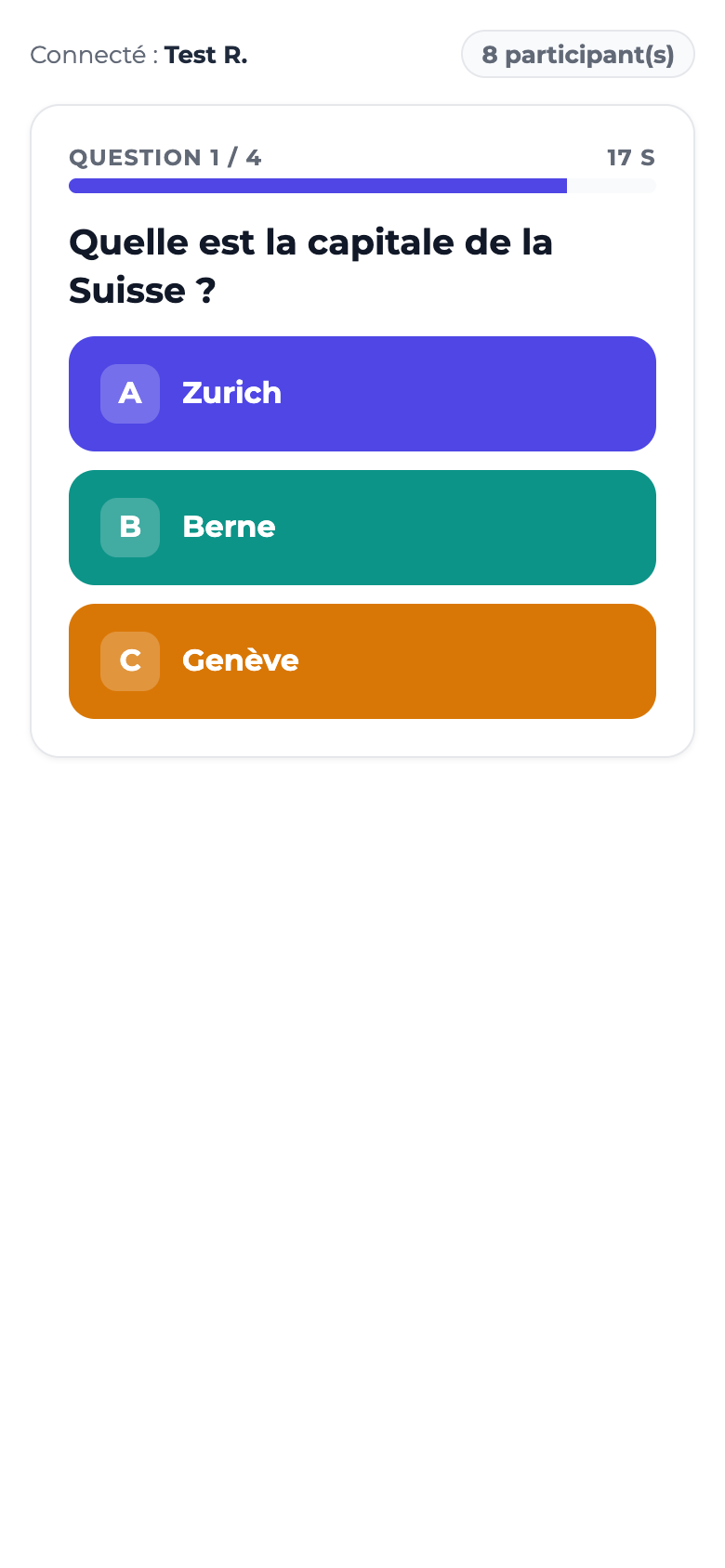
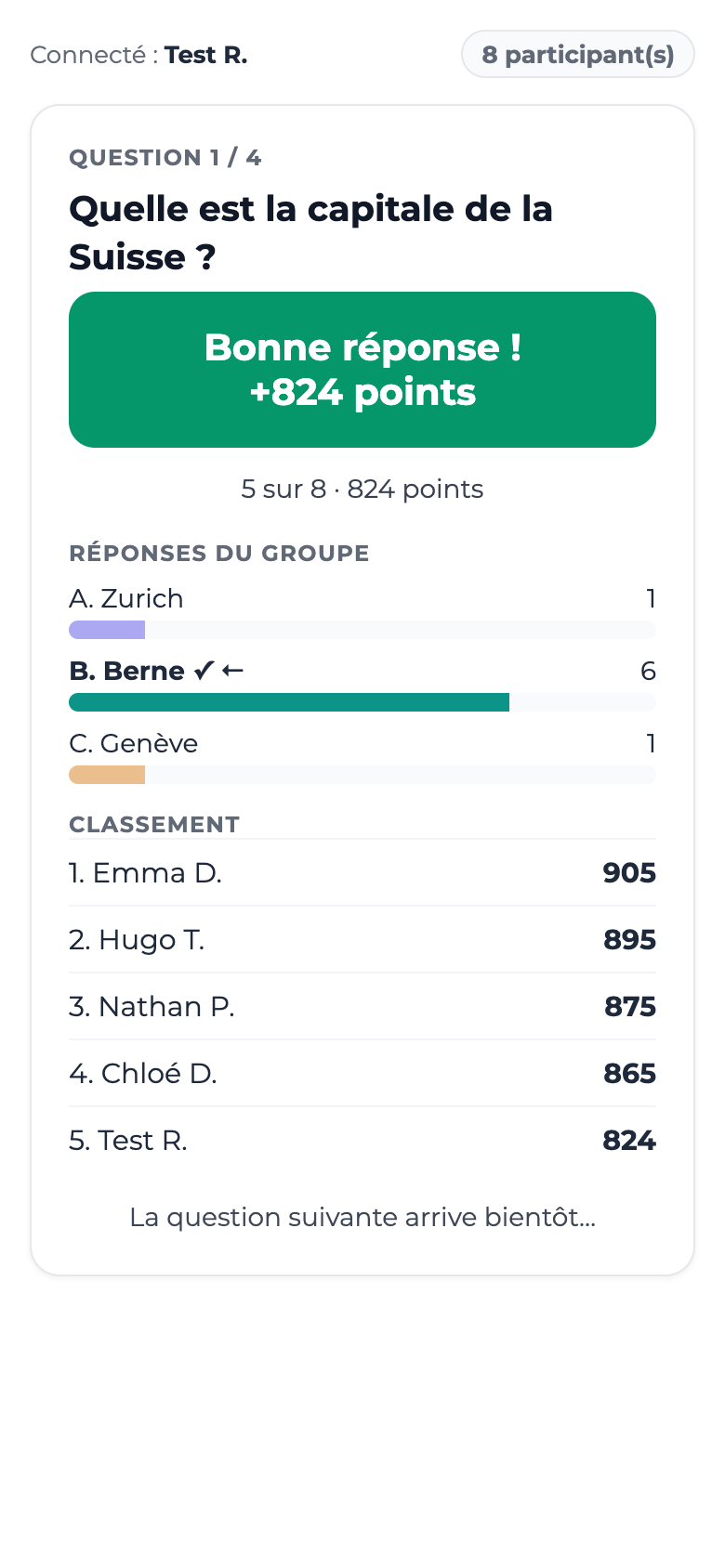
On their phone, they see the question, the time remaining and large answer buttons. After each question: correct or wrong answer, the points earned, their place in the leaderboard and the group's answers. At the end, their score as a percentage.
The learner can also open the activity from the course on their computer: the page waits for the instructor to start the session, then lets them in automatically.
Tracking and the summary
When you end the session, each participant who answered at least once receives a result for the activity:
- their score is the share of correct answers to the scored questions actually asked — a question you skipped does not count, a question left unanswered counts as wrong;
- the activity is passed if this score reaches the minimum set, failed otherwise.
The result counts towards the course result like any other activity, unless the activity is optional: it then remains visible in the learner's tracking, without affecting the validation of the course.
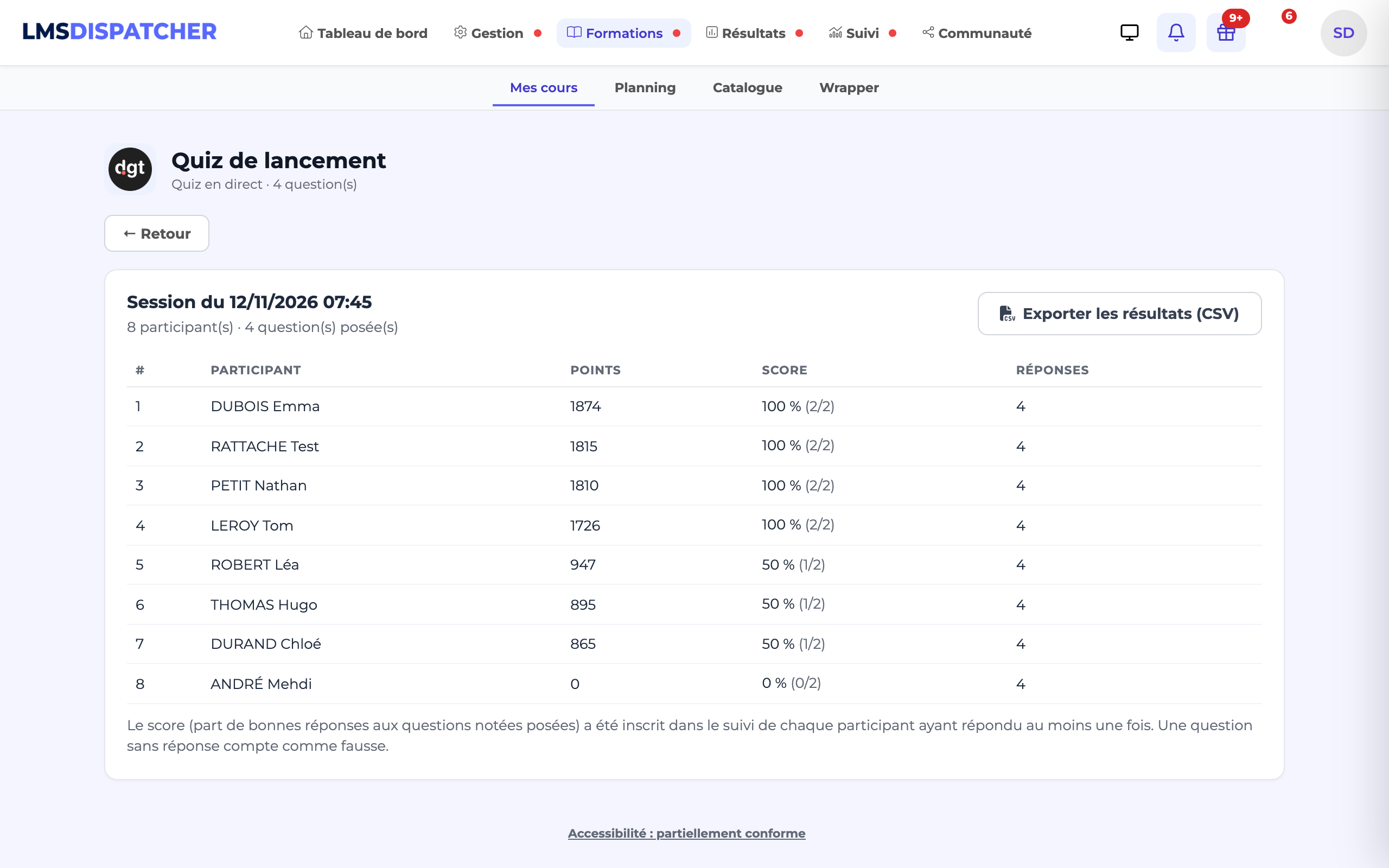
The summary of each session (View summary link in the list of sessions) shows, for each participant, their points, their score and their number of answers, then the results by question for that session.
Results by question
On the activity page (the one where you start a session), the Results by question card shows, for each question asked:
- the number of answers and, for a scored question, the success rate — a green, orange or red bar depending on whether it is above 70 %, 40 % or lower;
- for a scale, the average of the answers;
- the average time to answer, and the number of sessions in which it was asked.
At the top, the most missed question is highlighted (lowest success rate; in a tie, the one with the most answers): a topic to go over again in class, or a question to rephrase. The All, Last 30 days and Last session buttons choose which sessions are taken into account (only those that had participants count). The rate is calculated on the answers received: a participant who did not answer in time is not included — they do, however, count as wrong in their own score.
The Export results (CSV) button in the summary, or the Export (CSV) link in the list of sessions, downloads a file that opens straight in a spreadsheet: one row per participant (last name, first name, email address, points, score, correct answers), then, for each question asked, the answer given and, for a scored question, whether it was correct. Full names and email addresses are only included for learners you are allowed to see.
To combine several sessions in one file, click Export sessions (CSV) above the list of sessions. A window lists every session of the activity with a checkbox; those with participants are ticked by default. Filter by Year, Month or dates (From / To): a session hidden by the filter is never exported. Select all and Deselect all apply to the sessions shown, and a counter gives the number of sessions and participants selected. The file then has one row per participant and per session, preceded by the date and code of the session.
- An instructor or an administrator cannot play: when they open the activity, they arrive on the hosting screen. Their answers would distort the distribution projected in front of the room.
- Only one answer per question: a double tap or an unreliable network only counts it once. The server's time is what counts: an answer that arrives after time is up is not taken into account.
- A forgotten session expires after 12 hours: nobody can join it any more. Remember to end it all the same: its scores are only recorded in the tracking at that point, or when its summary is first opened.
- Only the author of the session and administrators can run it; another instructor starts their own session.
- On the projected screen, names are shortened (first name and initial); the summary, reserved for instructors, shows the full names of the learners they are allowed to see.