How it works
The Compare results activity asks no questions: it gathers the results the learner obtained in 1 to 6 assessed activities of the same course and shows them side by side. The typical case: a placement test at the start of the course and the same test at the end. The learner sees at a glance what they have gained, question by question.
Activities that can be compared:
- Quiz and Assessment (native quizzes);
- SCORM / AICC module;
- DGT Studio module.
For each activity, the learner's best attempt is the one used.
- First add the quizzes or modules to compare to the course: without them, the creation page displays "This course does not contain any quiz, assessment or SCORM module to compare yet".
- For a before / after comparison, the clearest approach is to ask the same questions in both activities: answers are matched by the wording of the question (see "Good to know").
- Place the activity after the compared activities in the learning path.
Create the activity
Open the learning path for editing
Click Add a learning unit.
Choose Compare results
In the E-learning family, just after Questionnaire.
Give it a title
And, if you wish, a description.
Tick the activities to compare
Under Activities to compare, the list shows the course's quizzes, assessments and modules with their type; tick 1 to 6 of them.
Set the display
Show question-by-question details (otherwise only the scores are compared) and Show the correct answers (under each wrong answer); both are ticked by default.
Save
Click Confirm, then save the course.
The activity is created with a weighting of 0: it counts towards the completion of the course, not towards its score. You can change this in the activity options, as for any resource.
On the learner's side
As long as one of the compared activities is not finished, the page displays "Comparison not available yet" with the named list of the resources still to take (To do or In progress) — and no results at all: no score, no correct answer. So the answers to the final test cannot be viewed before taking it.
Once all of them are finished, the learner sees:
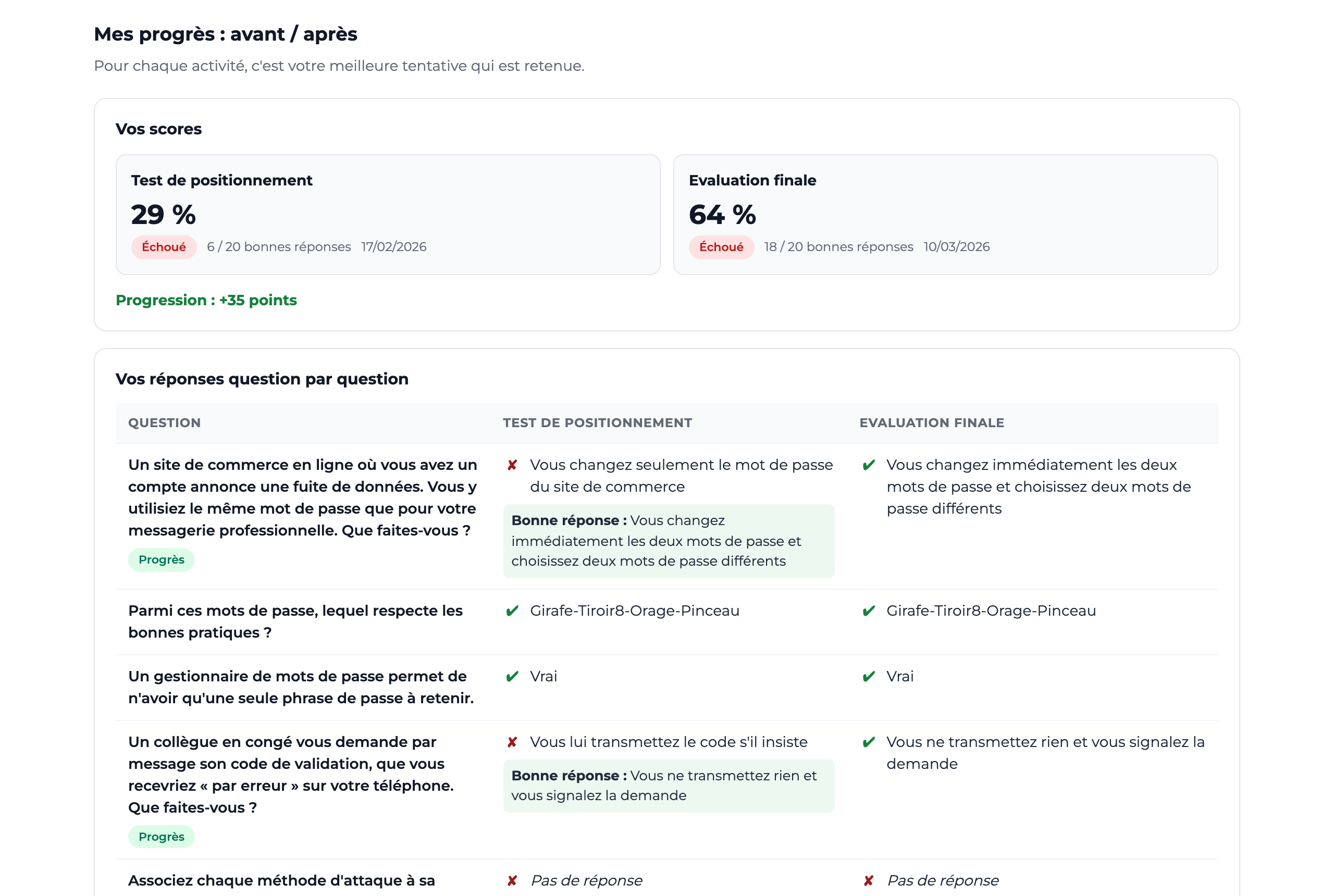
- Your scores — the best attempt at each activity side by side: score, status (Passed, Failed or Completed) and number of correct answers. With two activities, the difference is shown: Progress: +N points, Decline: −N points or Same score;
- Your answers question by question — if the option is ticked: one row per question, one column per activity, with the answer given, right or wrong, and the correct answer under each wrong answer if that option is ticked. An Improved badge flags a question missed at the start and answered correctly at the end, To review the opposite; "Question not asked" marks a question missing from one of the activities.
The activity is validated as soon as it is first displayed in full. If the compared activities did not record the details of the answers (some SCORM modules), only the scores are compared and a message says so.
On the instructor's side
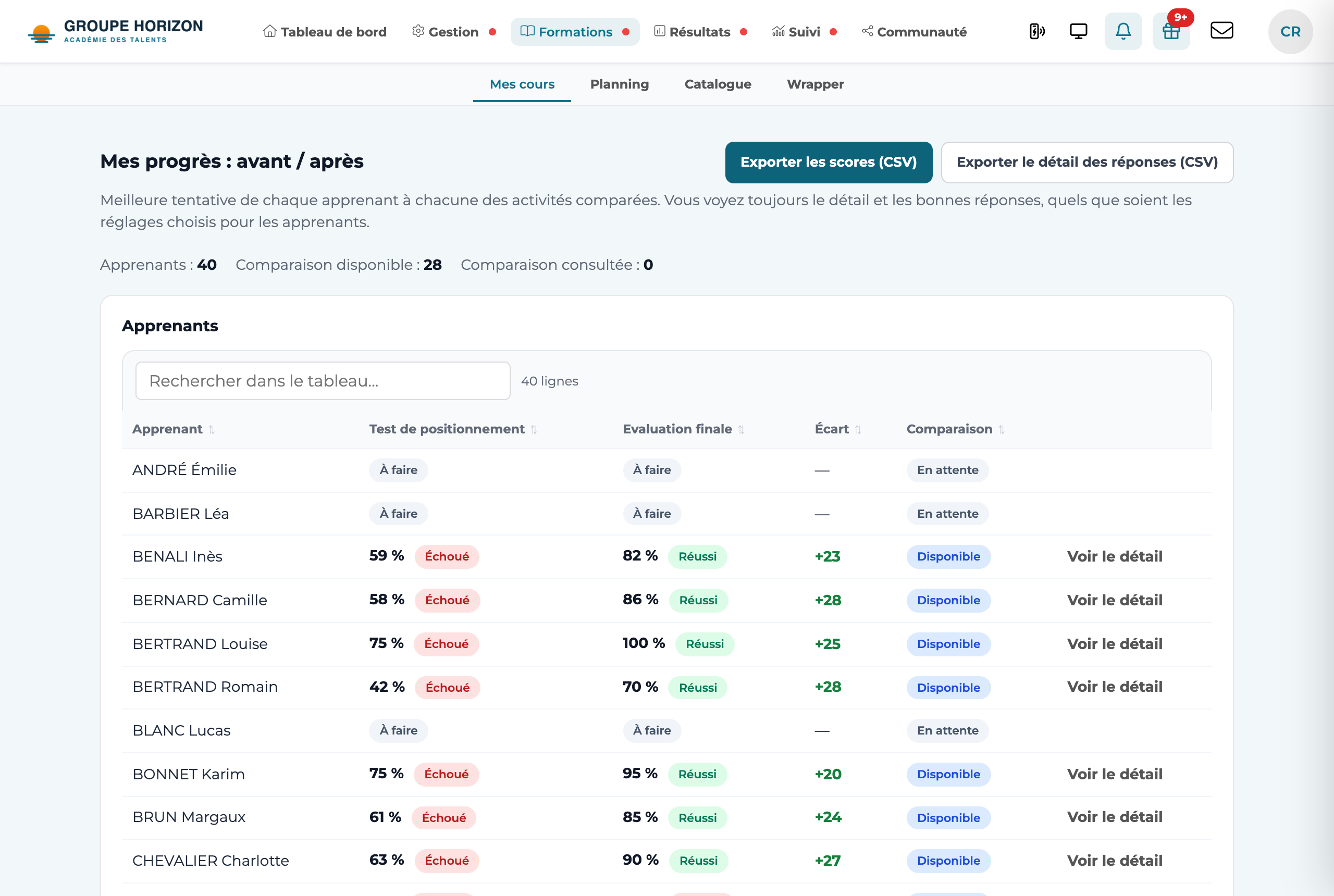
An instructor or administrator who opens the activity from the course arrives on a tracking page: each learner's best attempt at each of the compared activities. You always see the details and the correct answers, whatever settings were chosen for learners.
- The counters — Learners, Comparison available (all activities finished) and Comparison viewed.
- The learner table — one score per activity, the Difference (with two activities) and the state of the comparison: Viewed, Available or Pending. View details opens a learner's comparison, as they see it.
- Success rate per question — for each question, the share of correct answers in the group for each activity (among those who finished it): the topic that improved, the one that still needs work.
- The exports — Export scores (CSV) and Export answer details (CSV), which open directly in a spreadsheet.
Only the learners you are allowed to see appear on the page and in the exports.
- Best attempt — if the learner retook a quiz, their best score is compared, not the last one.
- Questions matched by their wording — a native quiz can draw its questions in a different order each time: the comparison finds each question by its wording, then by its identifier, then by its position. Keep identical wordings from one test to the other.
- Readable answers — answers from native quizzes (choices, true/false, matching, ordering) and from SCORM modules are displayed in plain text, not as codes.
- Weighting 0 by default — the comparison neither adds nor removes points from the course score.
- Deleting a compared activity removes it from the comparison; reorganising the learning path does not break the references.