The principle
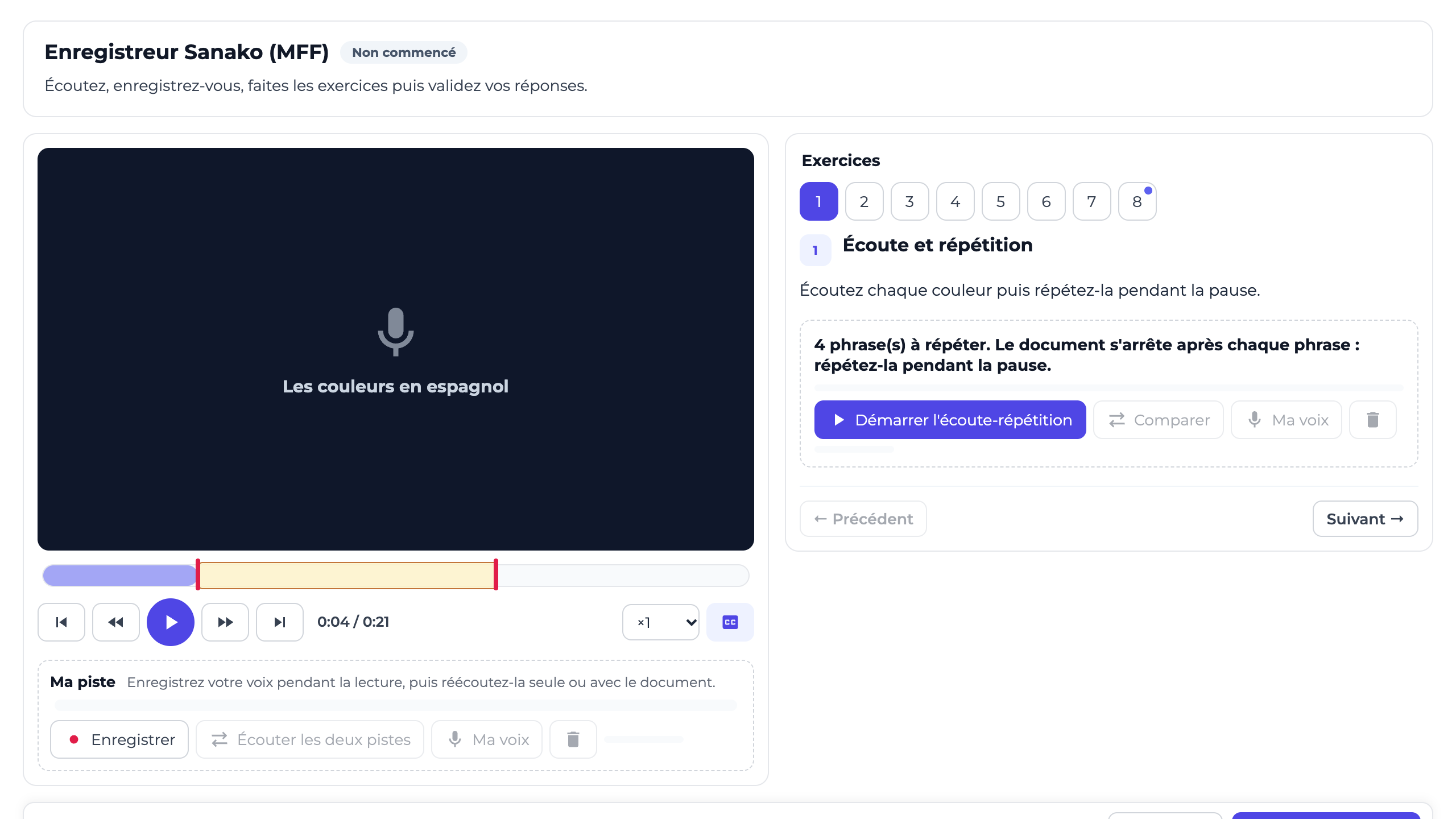
The Sanako recorder (MFF) activity follows the principle of the language lab: a dual-track player. The first track is the material (audio or video, with bookmarks, images and subtitles); the second is the learner's voice, which they record with their microphone during playback, then play back on its own or together with the material. Next to the player are the package's exercises: gap fill, questions, matching, multiple choice, free answer, voice recording, listen and repeat.
Written exercises are marked automatically by the server; recordings are listened to by the instructor.
- Prepare an
.mffpackage with Sanako Study MFF Editor or with DGT Concept's online MFF editor ("Open the MFF editor" link on the activity screen). - Choose the validation mode: automatic, based on the exercise score, or by the instructor after listening.
- On the learner's side, a microphone is required, and a headset is recommended: without one, the microphone also picks up the sound of the material.
Steps
Add the activity
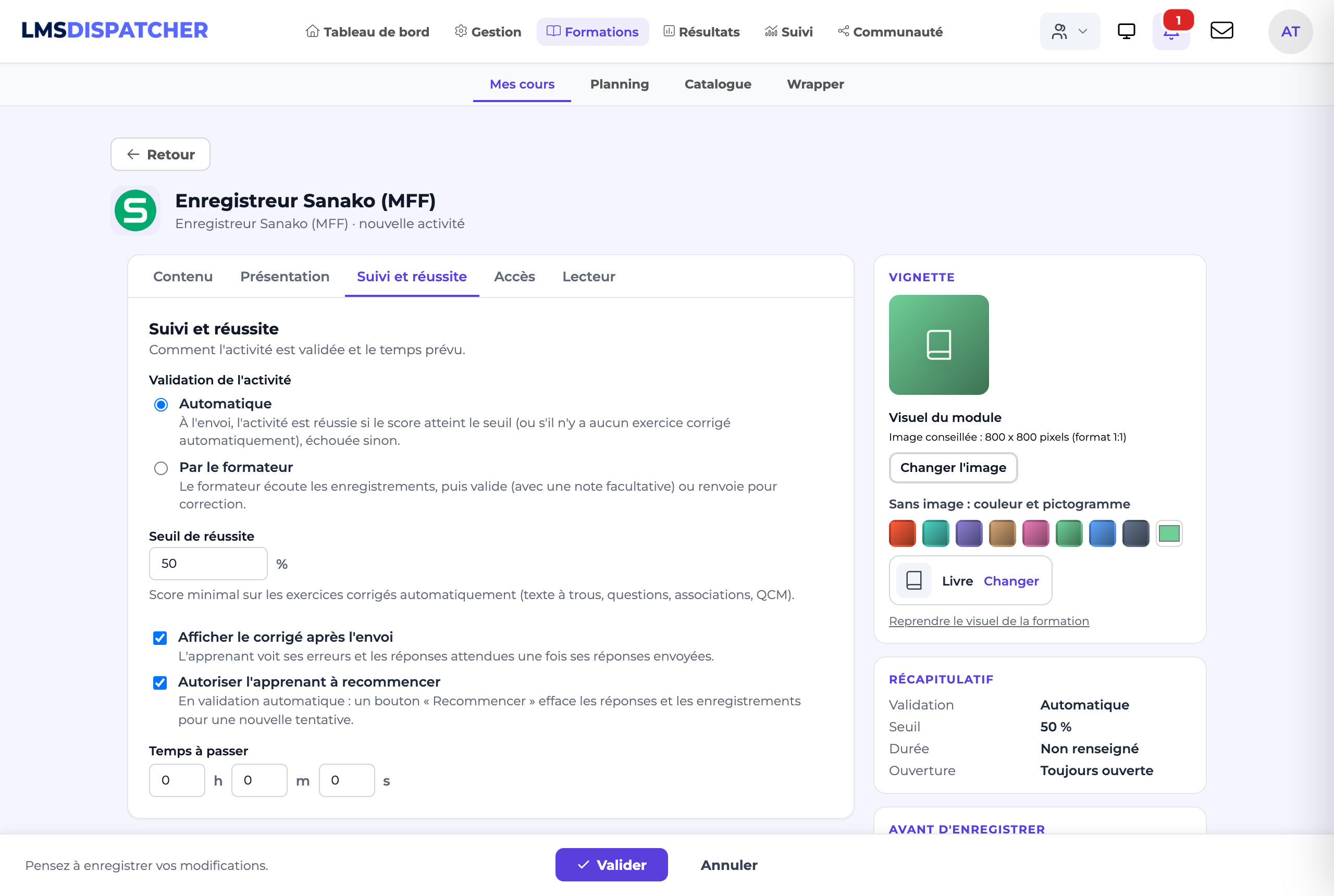
In the course being edited, click Add an activity, then the "Sanako recorder (MFF)" tile. The form is organised in tabs: Content (the package and the title), Presentation (instructions, description), Tracking and completion (completion, pass mark, options), Access and Player; the right-hand column sums up the settings.
Upload the package
In "MFF package (.mff)", choose your file. Once saved, the platform shows its summary, for example "8 exercise(s), length 00:21, 4 bookmark(s)". If the title has not been changed, it takes the package's title.
Choose "Automatic" validation
On submission, the activity is passed if the score reaches the Pass mark (50% by default), failed otherwise. A package with no automatically marked exercise is passed as soon as it is submitted.
Or choose "By the trainer" validation
The activity stays pending until the instructor listens to the recordings, then validates or sends it back for correction.
Set the options
"Show the answers after submission" shows learners their mistakes and the expected answers. "Allow learners to start again" adds, with automatic validation, a Start again button that clears answers and recordings. Both are ticked by default.
Write the instructions
The "Instructions" field is shown above the player.
Save
Click Validate, then save the course.
What the learner does
Listen to the material
The player offers play and pause, back or forward 5 seconds, previous / next bookmark, the playback speed and subtitles.
Record on their track
In "My track", they click Record during playback, then Stop. "Play both tracks" replays the material and their voice together; "My voice" replays their voice alone; the bin deletes the recording.
Do the exercises
The exercises are numbered to the right of the player, with Previous and Next. For a listen and repeat exercise, "Start listen and repeat" stops the material after each sentence: the learner repeats it during the pause, then Compare plays the model and their voice again.
Let the draft save itself
Answers are saved automatically ("Answers saved at 10:42") and when the page is closed; the Save button forces a save.
Submit
"Submit my answers" sends everything. With automatic validation, the score is shown immediately ("Score: 75 / 100"), with the answers if the option is ticked. With validation by the trainer, the message "Your answers have been sent. Your trainer will listen to them and validate them." is shown.
What the instructor does
Open the activity
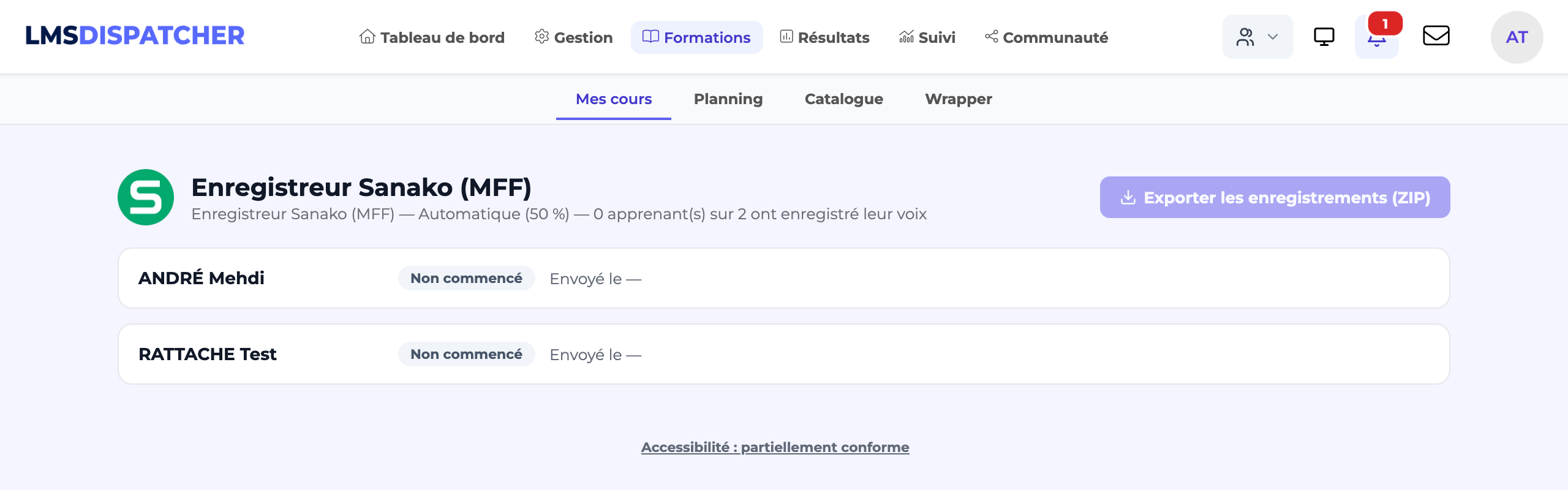
Open the activity from the course: an instructor or an administrator does not do the exercise, they land on the list of learners. The header shows the validation mode and the number of voices recorded, for example "3 of 12 learner(s) have recorded their voice".
Listen
For each learner: their status, the submission date ("Sent on"), their recordings to listen to and the "View written answers" link.
Validate
Enter a "Mark / 100" and a "Comment (optional)" if needed, then click Validate.
Send back for correction
Explain what to rework in the comment, then click "Send back for correction". The learner sees "Your trainer has asked you to rework this activity." and can answer and record themselves again.
Export the voices
"Export recordings (ZIP)" downloads all the voices recorded for this activity in a single archive.
Statuses
| Status | Meaning |
|---|---|
| Not started | The learner has not done anything yet. |
| In progress | They have started answering or recording, without submitting. |
| To be validated | They have submitted; the instructor must listen and decide ("By the trainer" validation). |
| To be reworked | The instructor has sent the activity back for correction. |
| Validated | The activity is passed. |
| Failed | Automatic validation: the pass mark was not reached. |
- The answer keys never leave the server: the learner cannot read them in the page before submitting their answers.
- Recordings are personal data: they are never accessible through a direct address. A learner only hears their own; an instructor, those of the learners they are allowed to see.
- The instructions are plain text (4,000 characters at most).
- Replacing the package of an activity already started keeps the learners' answers and voices, but they may no longer match the new exercises.
- If the browser shows "Microphone access was denied. Allow it in your browser to record yourself.", the learner must allow the microphone for the site in their browser settings.
- "This file is not a readable MFF package (.mfx track or program track not found).": the file is not a valid
.mff. Export it again from the editor. - The message "The database must be updated (migration 180) to use this activity." means the platform is not yet up to date: contact DGT Concept.