What the plugin does
DGTLMS Connect is a plugin to install on your organisation's WordPress site. It provides:
- A "My training space" button — a user logged in to WordPress opens the platform without entering a password again. Their learner account is matched by email address, or created the first time they use it.
- "My trainings" — their sessions and courses with their progress, in the WooCommerce account or anywhere on the site (block or shortcode).
- WooCommerce sales — a product gives access to a self-paced course, to dated sessions chosen by the buyer, or to one specific session. Enrolment happens on payment.
- Company purchases — a company buys seats for its staff, then assigns them itself from its account.
- A WordPress 6.5 site or later (PHP 7.4 minimum), served over HTTPS. WooCommerce is only needed to sell courses.
- Access to the DGTLMS Integrations & Connectors page: the rights to view and to act on external connectors (disabled by default for instructors and learners).
- Administrator access to the WordPress site, to install the plugin.
Steps
Download the plugin
In DGTLMS,
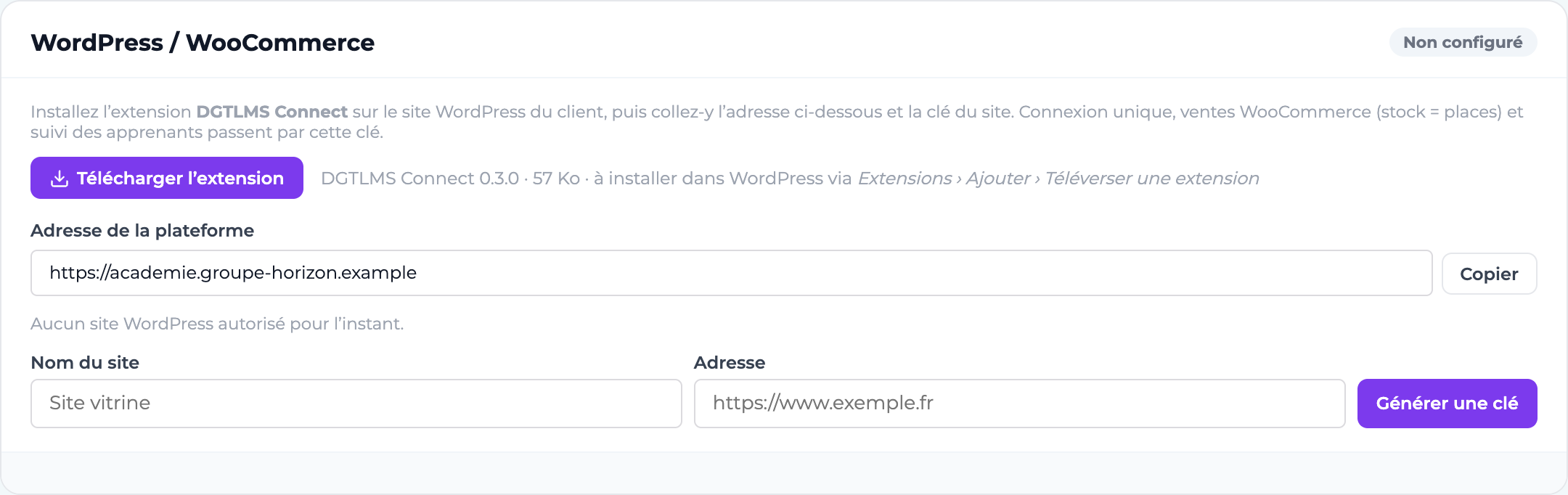
Administration → Intégrations & Connecteurs(Integrations & Connectors), Site web & boutique tab (website and shop), click Télécharger l'extension (download the plugin). You get the latest version as a .zip file.Install it in WordPress
Plugins → Add New Plugin → Upload Plugin, choose the .zip file, then Activate.Authorise the site in DGTLMS
On the same card, enter the site name and its address, then click Générer une clé (generate a key). Copy the key straight away: it will never be shown again.
Link WordPress to the platform
In WordPress,
Settings → DGTLMS Connect: paste the Platform address (shown on the card, Copier button) and the Site key, save, then click Test the connection. The "Connected to…" message confirms the link.Choose where the button appears
At the end of a menu, in a "My trainings" tab of the WooCommerce account, or anywhere else with the "DGTLMS" blocks and the
[dgtlms_bouton]and[dgtlms_mes_formations]shortcodes.Set the access rules
Allowed WordPress roles (subscriber and customer by default), automatic creation of missing accounts or refusal, Landing page (dashboard or "My trainings") and behaviour for visitors not logged in.
Sell courses with WooCommerce
In WordPress, open a product: its "DGTLMS training" tab sets what it gives access to.
- A self-paced course — immediate enrolment, no date.
- A dated training session, chosen by the buyer — the plugin creates one variation per ticked session; each variation's stock is its number of seats. New sessions of the course can be put on sale automatically, and a session can be withdrawn from sale as soon as it has started.
- One specific session — an existing session of the platform, or a new session (name, start date, optional end date) created in DGTLMS when the product is saved. The stock is set in the Inventory tab.
In Settings → DGTLMS Connect, WooCommerce sales section, choose when to enrol (order paid or completed only) and whether a cancelled or refunded order withdraws its enrolments and seats.
Purchases by a company
At checkout, the customer chooses "For me" (one seat, enrolment on payment) or "For my colleagues" (as many seats as the quantity). They then assign their seats from My account → Purchased seats: one at a time (first name, last name, work email) or by importing a list (CSV). Each colleague receives an invitation email. The customer follows their progress and can export the follow-up (CSV), send an invitation again or give a free seat to someone else.
- Security — The key never leaves the WordPress server: the button asks DGTLMS for a single-use login link, valid for 5 minutes. A WordPress administrator never becomes a DGTLMS administrator: only learner accounts are opened this way.
- Revoke — The card's Révoquer (revoke) button cuts the site off immediately: login, sales and tracking stop until a new key is entered.
- Platform outage — A failed enrolment is retried automatically (5 min, 30 min, 2 h, 6 h, 24 h); after that, the order's "Send the enrolments to DGTLMS again" action retries it manually.
- Partial refund — Nothing is withdrawn (there is no way to know which seat is being refunded): a note on the order says so.
- Update the plugin — Download the new version from the card, then upload it to WordPress: it offers to replace the installed plugin and keeps the settings.
- For each authorised site, the card shows the date of the last call and the number of enrolments made through it.