How it works
The Web page activity displays content that you write directly in the editor. It is now formatted automatically for the learner: a typeface designed for reading, lines of a comfortable length, headings and bullets in your platform's colour, dark mode, and a display adapted to phones.
You have nothing to do to benefit from it: existing web pages get this formatting the next time they are opened, without any change to their content. To go further, the Layout panel, below the editor, sets the page style and offers templates to insert.
The same layout applies to Read & acknowledge activities.
Page settings
The Layout panel sits below the text area, in the activity's Content tab. Each setting applies immediately in the editor: what you see is what the learner will see.
- Page style — four styles, which change the look of the whole page, blocks included:
- Classic: sober and versatile, the default style;
- Magazine: serif headings, a drop cap at the start of the text, fine rules — for a long text to be read like an article;
- Practical sheet: a solid title banner in the accent colour, underlined headings, more compact text — for a procedure;
- Minimal: centred headings, generous line spacing, discreet accents — for a short, calm page.
- Accent colour — Site colour (your platform's main colour, the default choice), or one of the four suggested shades: Indigo, Teal, Burnt orange, Blue. It colours banner headings, bullets, step numbers and links. Contrasts are adjusted automatically to stay readable, in light and dark mode alike.
- Text width — Comfortable (recommended) limits lines to a pleasant reading length; Full width uses all the available space.
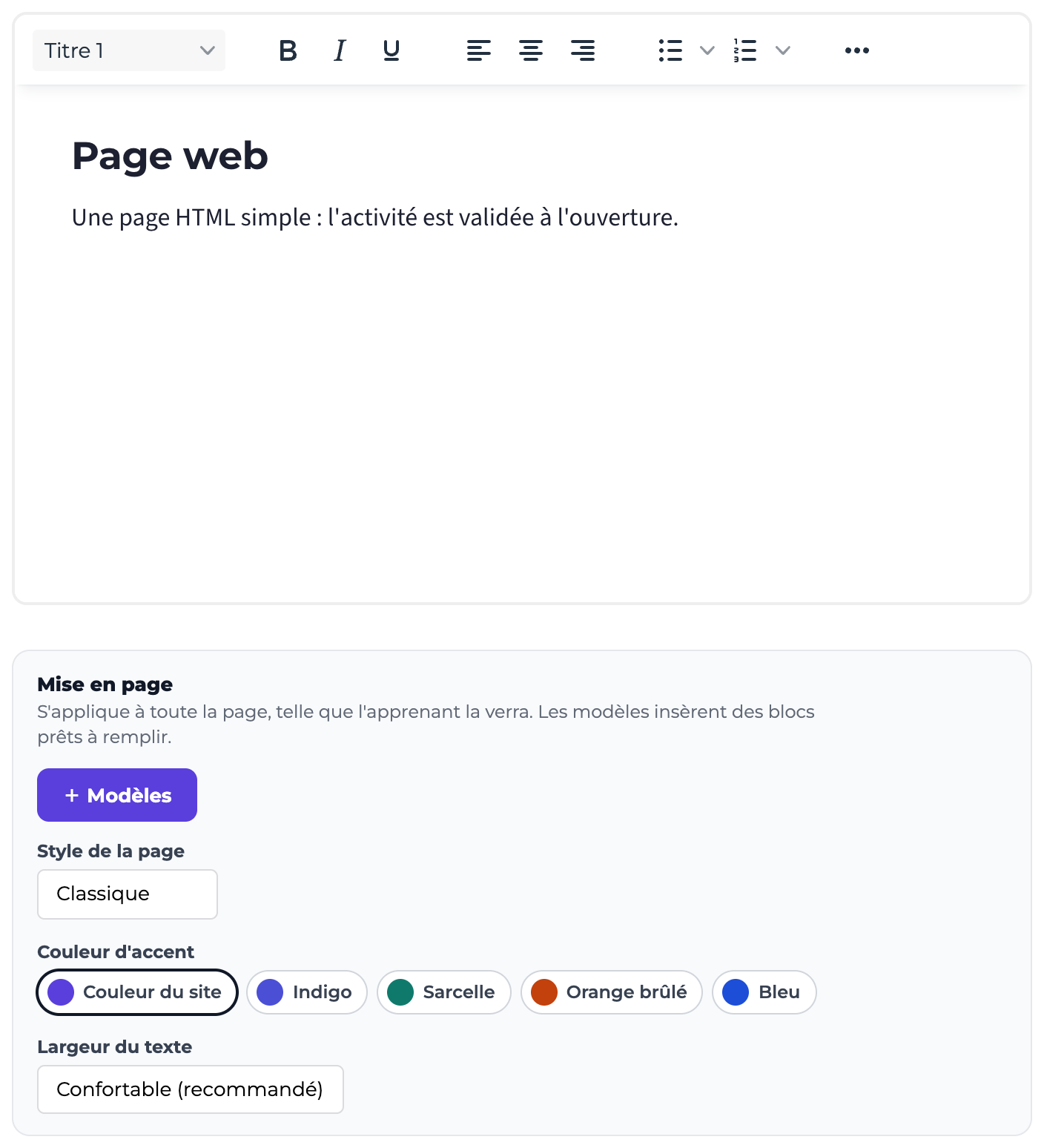
The toolbar also offers the Paragraph / Heading 1 / Heading 2 / Heading 3 list: structure your page with real headings, which take the intended typeface and size.
Insert templates
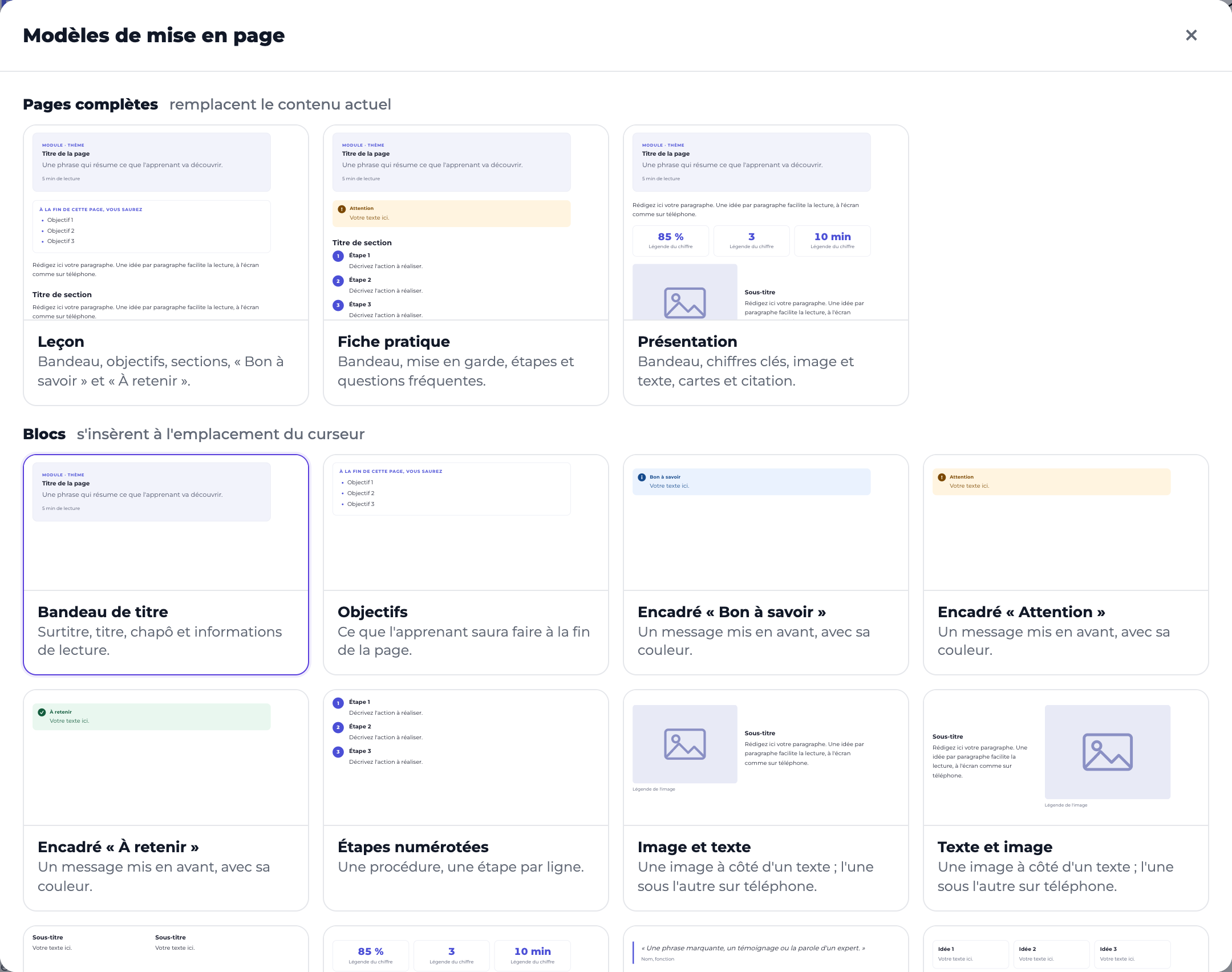
The + Templates button (in the panel, and in the toolbar) opens the Layout templates gallery.
Full pages — a starting structure, which replaces the current content (you are asked to confirm if the page is not empty):
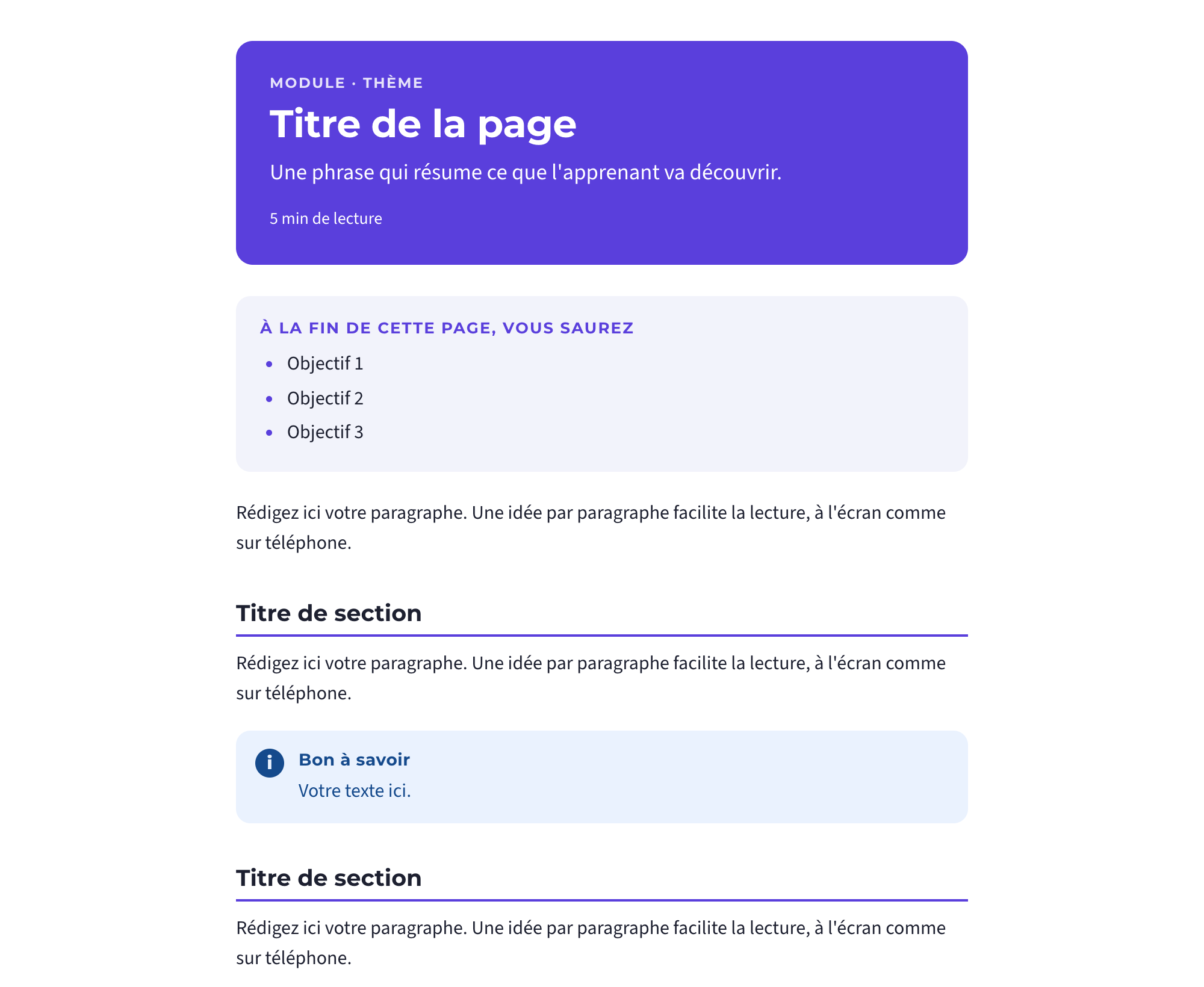
- Lesson: banner, objectives, sections, "Good to know" and "Key point";
- Practical sheet: banner, warning, steps and frequently asked questions;
- Presentation: banner, key figures, image and text, cards and quote.
Blocks — they are inserted after the block where your cursor is (never inside another block):
| Block | What it is for |
|---|---|
| Title banner | Kicker, title, standfirst and reading time at the top of the page |
| Objectives | What the learner will be able to do by the end of the page |
| "Good to know" box, "Warning" box, "Key point" box | A highlighted message, each with its own colour and icon |
| Numbered steps | A procedure, one step per line |
| Image and text / Text and image | An image next to some text, on the left or on the right |
| Two columns | Compare two situations, or arrange two lists |
| Key figures | Three highlighted numbers, with their caption |
| Quote | A testimonial or an expert's words |
| Cards | Three ideas side by side |
| Frequently asked questions | Questions whose answer expands on click |
Each template comes with sample text to replace: click in it and type your text as usual. For the sample image, select it and then use the toolbar's Image button to choose your own. Add or remove lines (objectives, steps, questions) with the Enter and Backspace keys.
What the learner sees
The page is displayed in the course player with the chosen style and colour. On a phone, columns, cards, key figures and "image and text" blocks stack one below the other. Frequently asked questions are collapsed: the learner clicks a question to see its answer (also with the keyboard, and announced by screen readers).
- Pages that contain only embedded content (Kahoot, Genially, Wooclap, LearningApps, a link to a website) are still displayed full-frame, with no margins or typography added.
- A page whose HTML code contains its own styles (
styletag, stylesheet or script) is displayed as is: your formatting is respected. - Colours and sizes set by hand in the editor take priority over the page style.
- The fonts are served by the platform itself: no call to an external service.